The Facebook Lead Engine — A Build Guide for Cleaning Companies
Run Facebook lead ads, capture the leads automatically, and text every lead an instant price quote, without lifting a finger after setup.
This guide takes you from zero to a live, automated lead engine. It is written so you can either read it and do it yourself, or hand it to an AI assistant (Claude, ChatGPT, etc.) and have it do the technical parts while you make the business decisions.
It is built from a real, running system: NeatNow, a Calgary cleaning company. Every
price, targeting choice, and creative rule you see is what NeatNow actually uses, shown as
a worked example. Wherever a number or setting is specific to NeatNow, you will see a
🔧 Customize callout telling you what to swap for your own business.
A note on what we are, and are not, expert in. We built and run this engine, and we are confident about the setup: the accounts, the lead form, the pricing logic, the Cloudflare worker, the deployment, and the monitoring. We are happy to share exactly how all of it works. We are not a marketing agency. The creative, offer, and targeting choices in here are just what worked for one Calgary cleaning business, shared as experience, not as expert advice. Test your own, and trust your own results.
What you will have built
A lead-filler on Facebook taps your ad, fills a short form (name, phone, home size, service type), and within seconds gets a text message with their price — while you get a notification with their details. No manual quoting, no "let me get back to you," no lead going cold while you sleep.
  ┌─────────────┐     fills      ┌──────────────────┐
  │  Facebook   │──── form ─────▶│  Meta Lead Form  │
  │  Lead Ad    │                │  (Instant Form)  │
  └─────────────┘                └────────┬─────────┘
                                          │ "new lead" webhook
                                          ▼
                              ┌───────────────────────┐
                              │   Your Cloudflare      │
                              │   Worker (the engine)  │
                              │  • fetch lead details  │
                              │  • compute the price   │
                              └───────┬─────────┬──────┘
                                      │         │
                   auto-quote SMS ◀───┘         └───▶ owner alert SMS
                   to the LEAD                        to YOU
                   "Hi Sara, your move-out            "🧹 NEW FB LEAD:
                    clean is $525 + GST…"              Sara, 2BR, Ad: 123…"
                                      │
                                      └───▶ backup copy saved (email/Formspree)
That is the whole scope of this guide. It stops at the automated quote.
Where this guide stops (scope)
In scope — the lead engine:
- The accounts you need (Meta, Cloudflare, an SMS provider)
- Building the Facebook lead form
- The pricing logic that turns a form answer into a quote
- The worker that ties it together and sends the texts
- Creating and targeting the Facebook ad
- Going live, testing, and monitoring it
Out of scope (on purpose): what happens after the quote text is yours to handle. This guide does not cover follow-up sequences, a booking/CRM system, drip messaging, or any "reply to me for approval" operator tooling. Once the lead has their price and you have their details, you follow up and close them manually (call, text, email — your call). Keeping the scope here is deliberate: this is the highest-leverage, most-automatable slice, and it is simple enough to stand up in a weekend.
What it costs to run
The infrastructure is nearly free; your real cost is ad spend, which you control.
| Piece | Cost | Notes |
|---|---|---|
| Cloudflare Worker (the engine) | $0 | Free tier = 100,000 requests/day, far more than a small business will ever use |
| SMS provider (Quo, formerly OpenPhone, in this example) | Monthly subscription + usage-based message credit | A business phone line you likely want anyway; cost scales with how many texts you send. Quo pricing |
| Lead backup (Formspree) | $0 | Free plan (50 submissions/mo); optional |
| Facebook ad spend | Your budget | NeatNow ran two ad sets at ~$10–20/day each |
So beyond ad spend, your only running cost is the SMS provider: a monthly subscription plus usage-based message credits that scale with how many texts you send (the full cost breakdown, and a gotcha worth knowing, is in 04-the-worker.md). The worker itself is effectively free.
Before you start (prerequisites)
You will need to create or already have:
- A Facebook Page for your business (not just a personal profile)
- A Meta Business Manager account (free; this is where ads and the lead form live)
- A Cloudflare account (free; hosts the engine)
- An SMS provider with an API (this guide uses Quo, formerly OpenPhone; any with a send-message API works)
- A way to pay for ads (a card on your Meta ad account)
- (Optional) A developer or AI assistant to deploy the worker — you do not need to know how to code, but the worker step involves running a few commands
No website or custom domain is required. The engine runs on a free Cloudflare URL.
How to use this guide
Read it in order, 01 → 06. Each numbered file is one stage and builds on the last. The appendices are reference material you dip into when a stage points you there.
If you are handing this to an AI: give it this whole folder. Tell it your business
details (city, prices, service types) up front, then work through the files with it. The
🔧 Customize callouts are exactly the decisions it should ask you about. The reference
worker code in Appendix A is complete enough for an AI to deploy without any other source.
File index
| File | What it covers |
|---|---|
01-foundations.md |
The accounts to create and how they fit together |
02-lead-form.md |
Building the Facebook lead form (the questions that drive the quote) |
03-pricing-engine.md |
The logic that turns a form answer into a dollar quote |
04-the-worker.md |
Deploying the engine on Cloudflare (the load-bearing token gotcha lives here) |
05-facebook-ad.md |
Creating, targeting, and writing the Facebook ad (Ads Manager) |
06-go-live-and-monitor.md |
Testing it end-to-end, monitoring, and judging whether it's working |
appendix-A-reference-worker.md |
The full, ready-to-adapt worker code |
appendix-B-meta-api-path.md |
Creating the ad via the Marketing API instead of the UI (for AI-driven setup) |
appendix-C-troubleshooting.md |
When leads stop arriving: the diagnosis playbook |
appendix-D-visual-walkthrough.md |
Dated screenshots of the System User token setup screens (from 01/04); the Ads Manager steps in 05 are text-only |
Last fact-checked: 2026-07-09. External products (Meta, Cloudflare, Quo) change their UIs and pricing; verify against their official docs before relying on any step.
Built and field-tested by NeatNow Cleaning (Calgary). Shared as-is for fellow operators.
01 — Foundations (the accounts, before anything technical)
← Back to README · Next: 02-lead-form.md
Before a single line of code or a single dollar of ad spend, you need a handful of accounts wired together correctly. This file is the boring-but-load-bearing part. Get these right now and the rest of the build is smooth; get them wrong and you will be chasing silent failures later (see appendix-C-troubleshooting.md for what "wrong" looks like in practice).
Nothing here requires coding. Most of it is signing up and clicking through setup wizards. Where a step has a gotcha that bites people, it is flagged.
How the pieces fit together
Think of it as three layers:
  ┌──────────────────────────────────────────────────────────────┐
  │  META (Facebook) side — where leads are born                   │
  │                                                                │
  │   Facebook Page ──── attached to ──── your Lead Ad + Form      │
  │        │                                                        │
  │        └── lives inside ──▶ Meta Business Manager              │
  │                                  │                              │
  │                                  ├── holds your Ad Account      │
  │                                  ├── holds a Meta App           │
  │                                  └── holds a System User ───┐   │
  └────────────────────────────────────────────────────────┐  │   │
                                                            │  │
                       never-expiring token ◀───────────────┘  │
                                  │                             │
  ┌───────────────────────────────┼─────────────────────────────┘
  │  YOUR side — where leads get handled                          │
  │                               ▼                               │
  │   Cloudflare Worker ── fetches lead, computes price ──┐       │
  │                                                       │       │
  │            ┌──────────────────────┬───────────────────┘       │
  │            ▼                      ▼                            │
  │     SMS provider           Formspree (optional)               │
  │     (texts the quote)      (emails you a backup copy)         │
  └──────────────────────────────────────────────────────────────┘
The Meta side produces leads. Your side receives and acts on them. The bridge between them is a special never-expiring token, minted by the System User — that token is the one thing in this whole guide most likely to break your engine if it is set up the lazy way, so it gets its own section below and a full walkthrough in 04-the-worker.md.
The accounts, one at a time
1. Facebook Page (required)
A business Page — not your personal Facebook profile. Ads run from a Page, and the lead form attaches to a Page. If you already run any Facebook presence for your business, you have this.
- Create at: facebook.com → Pages → Create a Page (or go straight to facebook.com/pages/create/). You fill a Page name and Category (both required) and an optional Bio, then click Create Page. Do this while using your personal Facebook profile: if Facebook is currently "acting as" another Page, switch back to your profile first, a Page cannot create a Page and the create screen will not load.
- You must be an admin of the Page.
- This is also the Page a lead sees as the "sender" of the ad, so name and brand it as your business.
🔧 Customize: Use your own business Page. Everything downstream (the form, the ad, the lead webhook) hangs off this one Page.
2. Meta Business portfolio (required, free)
business.facebook.com is the container that holds everything on the Meta side: your ad account, your Page, your app, and your System User. Meta now calls this container a Business portfolio (you will still see the older names "Business Manager" and "Business account" in some places, they mean the same thing). Without it you cannot create a System User, and without a System User you cannot get the durable token the engine needs.
- Create at: business.facebook.com → create a Business portfolio.
- Add your Page to it (Meta Business Suite → Settings → Accounts → Pages).
- Create or add an Ad account inside it (Meta Business Suite → Settings → Accounts →
Ad accounts). Note its ID — it looks like
act_XXXXXXXXXXXXXXX.
ℹ️ Two different Meta tools, do not mix them up. business.facebook.com (Meta Business Suite, and the Settings gear inside it) is where you set up and hold the accounts: your Page, ad account, System User, and app. adsmanager.facebook.com (Ads Manager) is a separate tool where you actually build, launch, and watch the ads themselves, that is Section 05. You do the account setup in Business Suite here, then switch to Ads Manager later to run the campaign. Ads Manager is also reachable from the menu inside Business Suite, so it is easy to think they are one thing, they are not.
Meta has migrated the old "Business Settings" into the Settings gear in Meta Business Suite (older accounts may still call it "Business Settings"; both open the same place, and the old
business.facebook.com/settingsURL auto-redirects tobusiness.facebook.com/latest/settings).
NeatNow example (use your own): ad account
act_1901764640543722, Page ID976943655503330. These are shown only so you recognize the shape of the IDs.
3. A Meta App (required, free)
A Meta App (developers.facebook.com) does two jobs in this build:
- It is what receives the lead webhook — the "new lead just came in" ping Facebook sends to your worker.
- It is the app context under which you mint the System User token.
Steps (current Create App wizard):
- Go to developers.facebook.com → My Apps → Create App. Meta has replaced the old "pick an app type" screen with a short wizard: App details → Use cases → Business → Requirements → Overview.
- App details: name it something obvious like "Lead Webhook" and set a contact email.
- Use cases: the app only needs to receive the lead webhook and read leads, which you
wire up in 04-the-worker.md. The route that matches how NeatNow's app
is actually set up is Create an app without a use case (a bare app ID you add the
leadgenwebhook and Leads Access to later). Meta also offers a ready-made Capture & manage ad leads with Marketing API use case if you prefer an on-rails setup. - Business: connect the Business portfolio you created in step 2.
- You will come back to this app in 04-the-worker.md to point its webhook at your worker's URL and to generate the token.
Ignore older guides that say "choose the Business type." That path still exists but is now buried under Other → select an App Type, and Meta labels it "This option is going away soon," so do not build on it. (NeatNow's own app predates the wizard and still shows Type: None, which is the same thing as "without a use case.")
NeatNow example (use your own): the app is named "NeatNow Lead Webhook."
🔧 Customize: Name the app whatever you like; "Lead Webhook" keeps its purpose obvious a year from now.
4. The System User (required — this is the one that matters)
In Meta Business Suite → Settings → Users → System users (older accounts: "Business
Settings → Users → System Users"), create a System User. This is a non-human identity
inside your business whose token never expires. The worker uses that token to fetch
each lead's details from Facebook. (See appendix-D-visual-walkthrough.md
for dated screenshots of these screens.)
Why this account is the one to get right:
A normal user token (or a "page token" derived from your login) dies the moment you change your Facebook password — or when Meta forces a security reset, or after ~60 days. When it dies, the worker keeps receiving leads but silently drops every one of them: no quote text to the lead, no alert to you, not even a backup. NeatNow lost two days of leads to exactly this. A System User token survives password changes and can be set to never expire.
You do not need to understand the exact permissions yet — the full token-minting walkthrough (which permissions, the "Leads" task on the Page, the account-verification prompt) lives in 04-the-worker.md. For now, just create the System User and know that it exists for this reason.
NeatNow example (use your own): the System User is named "Conversions API System User."
5. Cloudflare account (required, free)
The engine itself is a small Cloudflare Worker — a bit of code that runs on Cloudflare's free tier and ties everything together (receives the webhook, fetches the lead, computes the price, sends the texts). The free tier covers far more traffic than any small business will generate.
- Create at: cloudflare.com → Sign up (free).
- You (or your AI assistant) will use Cloudflare's
wranglercommand-line tool to deploy the worker and set its secrets. That is covered in 04-the-worker.md. - No custom domain or website is required — the worker gets a free
*.workers.devURL.
6. An SMS provider with a send API (required)
This is what actually texts the quote to the lead and the alert to you. You need a provider that (a) gives you a business phone number and (b) has an API to send a message programmatically.
This guide's worked example uses Quo (formerly OpenPhone). OpenPhone officially rebranded to Quo in September 2025; the domain is now quo.com and openphone.com redirects to it.
- Sign up at the provider, pick/port a business phone number.
- Get an API key (Quo: workspace Settings → API tab; requires an Owner or Admin role). (Quo API authentication docs)
- You will store the API key and your "from" number as worker secrets later.
🔧 Customize: Any SMS provider with a send-message API works — Twilio, Telnyx, OpenPhone/Quo, etc. The worker sends a simple HTTP request to send a text; you (or your AI assistant) point it at your provider's send endpoint and set the API key. If you use something other than OpenPhone, that one HTTP call is the only worker code you need to adjust.
7. Formspree (optional, but mind Meta's 90-day limit)
Formspree is a no-backend way to get an emailed backup copy of every lead. The worker posts each lead to a Formspree form endpoint, and Formspree emails it to you. It is a safety net: even if you miss a text, there is an out-of-band record.
Why bother, when Meta's Leads Center stores every lead your form captures? Because Leads Center is not a permanent archive. Per Meta, instant-form leads are only available to download for 90 days from submission; after that Meta removes them and they cannot be retrieved (this is true even for a campaign's lifetime results). So without a backup, the real fallback is: if your worker ever goes down, you have up to 90 days to notice — the fail-loud SMS alert (04-the-worker.md) helps — and pull those leads from Leads Center by hand. Past that window, un-retrieved leads are gone. An out-of-band backup like Formspree gives you a lasting record.
Source: Meta Business Help Center, "About expired leads" — "Leads data will be available for download for up to 90 days from the time the Instant Forms is submitted by a user."
- Create at: formspree.io (free tier is plenty).
- Create a form, copy its endpoint URL, and set it as a worker secret later.
- Entirely optional — skip it and the engine still runs fine; just treat Leads Center as a 90-day window, not forever.
8. A payment method on the Meta ad account (required to spend)
Ads do not deliver without billing set up. In Meta Business Suite → Settings → Billing & payments (or Ads Manager → Billing), add a payment method to your ad account. You will not be charged until your ad is live and delivering; you control the budget. Details on the ad itself are in 05-facebook-ad.md.
Accounts checklist
| Account | What it is for | Free or paid |
|---|---|---|
| Facebook Page | Ads and the lead form attach to it | Free |
| Meta Business portfolio | Container for the ad account, Page, app, and System User | Free |
| Meta App ("Lead Webhook") | Receives the lead webhook; context for minting the token | Free |
| System User | Identity whose never-expiring token the worker uses to fetch leads | Free |
| Cloudflare | Hosts the worker (the engine) | Free tier |
| SMS provider (Quo, formerly OpenPhone, etc.) | Sends the quote text and your owner alert | Monthly subscription + usage-based message credit |
| Formspree (optional) | Emails you a backup copy of every lead | Free tier |
| Payment method on ad account | Pays for ad delivery | Your ad budget |
So beyond ad spend, the only running cost of the stack is your SMS provider, and it has two parts: a monthly subscription plus a usage-based message credit that draws down as you send texts and gets topped up when it runs low. Budget for both, and check the provider's current pricing for exact figures.
Honest gap note
The exact signup screens for the SMS provider and for any booking/CRM system you later follow up in change often, and they differ by provider, so this guide does not reproduce them click-by-click. Treat "sign up and grab your API key" as a self-serve step and follow the provider's own current docs:
- OpenPhone/Quo API: their Settings → API page and developer docs.
- Whatever booking or CRM tool you use to close leads is your own manual follow-up destination and is out of scope here — this guide stops at the automated quote text.
The Meta-side accounts (Page, Business portfolio, App, System User) are documented in detail because their setup is where the load-bearing token gotcha lives, and getting it right is the difference between a reliable engine and the silent-failure incident in appendix-C-troubleshooting.md.
With the accounts in place, move on to designing the form that captures exactly what the quote needs: 02-lead-form.md.
02 — The Lead Form (the questions that drive the quote)
← Back to README · Previous: 01-foundations.md · Next: 03-pricing-engine.md
This file is about what questions to ask on your Facebook lead form and why. The step-by-step click path to actually build the form inside Ads Manager lives in 05-facebook-ad.md. Read this one first so you know what you are building before you build it.
What a Meta lead form is
A Meta Instant Form (also called a "Lead Form") is a mini form that opens inside Facebook or Instagram when someone taps your ad. It does not send them to your website. The form lives inside Ads Manager, attached to the ad, and Facebook stores every submission. When a lead submits, Facebook fires a "new lead" notification (a webhook) that your engine listens for. That is the trigger for the whole pipeline.
Because the form opens in-app and Facebook pre-fills the person's name, phone, and email from their profile, completion rates are high. Your job is to keep it that way: ask only what you must.
The form's one job
Collect exactly the answers the pricing engine needs to compute a quote, and nothing that adds friction.
Every extra question costs you completed leads. So the rule is simple: a question earns its place only if the price changes based on the answer. For a cleaning company, the price is driven by four things:
- What service they want (standard, deeper one-time, move-in/out)
- How big the home is (square footage)
- How many bathrooms (each extra one adds labour)
- How soon / how often (timing + recurring frequency, which can earn a discount)
Plus the identity fields needed to text them the quote (name, phone) and to save a backup (email). That is the whole form. Resist adding anything else.
How the engine reads the answers (and why exact wording is forgiving)
The engine does not require your question labels to match word-for-word. It matches
each field by fuzzy keyword: it lowercases the label, strips out spaces and
punctuation, and checks whether a known keyword appears anywhere inside it. So a
question titled "How many bathrooms do you have?" and one titled "Bathrooms" both match on
the keyword bathroom.
Here is exactly what the parser looks for (from parseLeadFields in the worker):
| What the engine wants | Keywords it searches the label for | Source of the answer |
|---|---|---|
| First name | first_name, firstname |
Facebook pre-fill |
| Last name | last_name, lastname |
Facebook pre-fill |
| Full name (fallback) | full_name, name |
Pre-fill, only if first/last are absent |
email |
Facebook pre-fill | |
| Phone | phone_number, phone |
Facebook pre-fill |
| Street address (optional) | street_address, address |
Custom question, if you ask it |
| Service type | service, type_of_service, what_type_of_service |
Your custom question |
| Timing / how soon | how_soon, timing, when |
Your custom question |
| Square footage | square_footage, sqft, size, approximate_square |
Your custom question |
| Bathrooms | bathroom, how_many_bathrooms |
Your custom question |
The forgiveness is in the question label, not the answer. For square footage, the engine reads the first number in the chosen answer and floors it into the nearest pricing bracket (anything 3000+ or unparseable becomes a custom quote). So your sqft options do not have to be worded a specific way, but they must line up with your pricing brackets, or a filler lands in a bracket you did not intend (see the critical callout below).
🔧 Customize: As long as your service / sqft / bathrooms question wording contains one of the keywords above, the parser will find it. If you want to use wording with none of those keywords, you (or your AI assistant) must add your keyword to the matching list in the worker. Easiest path: keep a keyword in the label.
The four custom questions
Q1 — Service type
Ask what kind of clean they want. The engine maps the chosen label to a service tier by looking for a keyword inside the answer (see 03-pricing-engine.md for the full mapping logic):
| If the chosen answer contains… | It maps to… |
|---|---|
move |
Move In/Out clean |
first / deep |
First-Time Clean |
anything else (e.g. one time, bi-weekly) |
Standard |
⚠️ Note on First-Time Clean: The mapper routes an answer containing "first" or "deep" → First-Time Clean out of the box (and "move" → Move In/Out; everything else → Standard). But NeatNow's live form does not offer a first-time option, its three choices are one-time, bi-weekly, and move-in/out, so in practice no lead selects it and the live form quotes only Standard and Move In/Out. To quote First-Time from a Facebook lead, just add a form option whose label contains "first" or "deep", no code change needed; the mapper already routes it. See 03-pricing-engine.md.
NeatNow's real Q1 options (this is the live form):
What type of cleaning do you need?
  - One time cleaning
  - Bi-weekly cleaning
  - Move in / move out cleaning
Notice this one question does double duty: it captures service type and frequency. "Bi-weekly cleaning" both keeps the service at Standard and flags a recurring (biweekly) clean, which can earn a frequency discount.
🔧 Customize: Offer the service tiers you actually sell. If you sell a true deep / first-time clean as its own line, add it here AND wire its keyword into the mapper.
Q2 — Timing / how soon
How soon do you need cleaning?
  - ASAP
  - Within 2 weeks
  - Within 30 days
This does not change the price. It tells you (in the owner-alert text) how hot the lead is, so you know who to call first. Keep it to one tap.
Q3 — Square footage (the price driver)
This is the price-driving question, and its answer options are the ones that must line up with your pricing brackets. The options are a frozen set of brackets that map one-to-one to the pricing table:
Approximate square footage of your home?
  - 1700-1999
  - 2000-2249
  - 2250-2499
  - 2500-2749
  - 2750-2999
  - 3000+
A few deliberate choices here:
- Below 1700 is intentionally not offered. The engine floors anything smaller into the
1700-1999bracket, and NeatNow's economics do not target tiny units through this funnel. Not offering the option avoids attracting leads outside the model. 3000+is a custom-quote bucket. There is too much price spread above 3000 sqft to auto-quote honestly, so the engine deliberately does not put a number on it (it sends a "custom quote, I'll follow up" text instead). More in 03-pricing-engine.md.
🔧 Customize: These brackets and their boundaries are NeatNow's. Pick brackets that match how your pricing tiers up, then make the form options and the pricing table identical. Whatever your top bracket is, decide if it auto-quotes or routes to a custom quote.
Q4 — Bathrooms
How many bathrooms do you have?
  - 1
  - 2
  - 3+
The engine reads the first number in the answer. Each bathroom beyond the first adds a flat add-on to the quote (NeatNow: +$25 each). "3+" is read as 3.
Identity & CTA
- Pre-fill fields: add First name, Last name, Phone number, Email. Facebook auto-fills these from the user's profile; the lead just taps to confirm. This is where the high-completion magic comes from, so always use the pre-fill fields rather than typing-it-in custom questions.
- Street address: optional. NeatNow dropped it from the live form to cut friction (geo is already handled by the ad's location targeting, and the address is collected later when you follow up). The engine will read it if present and ignore it if not.
- CTA button: set the form's call-to-action to
GET_QUOTE. It sets the right expectation: tap, get a price.
⚠️ The form and the pricing engine are two halves of one contract
This is the one thing not to get wrong in this file.
The form's answer options and the pricing engine MUST stay in lockstep. If you add, rename, or re-bracket a square-footage option on the form, you MUST make the identical change in the pricing logic. If they drift apart, leads get a wrong or blank quote, automatically, with no human in the loop to catch it.
Concretely: the form option 2250-2499 only produces a correct quote because the pricing
table has a matching 2250-2499 row. Add a 1500-1699 option to the form without adding
it to the table, and every lead who picks it falls into the fallback bracket (or a custom
quote) and gets a price you did not intend. Think of the form options as a list of keys,
and the pricing table as the lock. Change one, change the other, in the same sitting.
Recommended question list (copy this into the form builder)
CTA button: Get Quote (GET_QUOTE)

Custom questions (multiple choice):

1. What type of cleaning do you need?
   - One time cleaning
   - Bi-weekly cleaning
   - Move in / move out cleaning

2. How soon do you need cleaning?
   - ASAP
   - Within 2 weeks
   - Within 30 days

3. Approximate square footage of your home?
   - 1700-1999
   - 2000-2249
   - 2250-2499
   - 2500-2749
   - 2750-2999
   - 3000+

4. How many bathrooms do you have?
   - 1
   - 2
   - 3+

Pre-fill fields (Facebook auto-fills):
   - First name
   - Last name
   - Phone number
   - Email
🔧 Customize: Swap the service tiers, sqft brackets, and bathroom options for yours. Keep the structure (one price-driving question each for service, size, bathrooms; one timing question; pre-fill identity fields), and keep a matching keyword in each label.
Next, see how these four answers become a dollar figure: 03-pricing-engine.md.
03 — The Pricing Engine (form answer → dollar quote)
← Back to README · Previous: 02-lead-form.md · Next: 04-the-worker.md
The concept
The pricing engine is a small lookup table plus a little arithmetic. It takes the four answers from the lead form, square-footage bracket, service type, bathroom count, and frequency, and turns them into a dollar quote instantly, with no human involved. No spreadsheet, no "let me get back to you." The lead gets a number in seconds.
It is deliberately simple. There is no AI guessing prices, no fuzzy logic on the money. A bracket plus a service tier points at one row in a table; bathrooms and frequency adjust it; the result is the quote. Simple means predictable, and predictable means you can trust it to run unattended.
This file documents NeatNow's actual Calgary numbers as the worked example. The structure is what you copy; the numbers are what you swap.
The three service types
| Code name | What it is |
|---|---|
| Standard | A regular maintenance clean. The base price. Can be recurring (and earn a frequency discount) or one-time. |
| First-Time Clean (FTC) | A deeper one-off clean to get a home to baseline before standard cleans begin. Priced as Standard base plus an FTC extra. Not recurring, no frequency discount. |
| Move-In/Out (MIO) | A deep clean of an empty home for a move. Priced as Standard base plus an MIO extra. No frequency discount. |
The key design idea: Standard base is the foundation for every tier. FTC and MIO are not separate price tables; they are the Standard base plus an extra for that bracket.
The square-footage price table
This is the heart of the engine, taken exactly from calculateFbPrice in the worker. Read
it as: pick the bracket row, take the Standard base; for FTC or MIO, add the extra in
that row to the Standard base.
| Sqft bracket | Standard base | + FTC extra | + MIO extra | FTC total | MIO total |
|---|---|---|---|---|---|
| 1700-1999 | $225 | +$175 | +$275 | $400 | $500 |
| 2000-2249 | $235 | +$175 | +$300 | $410 | $535 |
| 2250-2499 | $252 | +$175 | +$300 | $427 | $552 |
| 2500-2749 | $270 | +$225 | +$325 | $495 | $595 |
| 2750-2999 | $294 | +$225 | +$325 | $519 | $619 |
| 3000+ | custom quote | — | — | — | — |
(The "FTC total" / "MIO total" columns are just Standard base + the extra, shown for convenience; the engine stores the base and the extra separately and adds them.)
🔧 Customize: Every number above is NeatNow's Calgary pricing. Replace the whole table with your own brackets and prices. Keep the structure: a Standard base per bracket, and an FTC/MIO extra added on top, not a separate table. And remember the lockstep rule from 02-lead-form.md, your form's sqft options must match these bracket labels exactly.
How each answer maps
Service type → tier
The engine reads the service answer and picks the tier by keyword (fbServiceTypeFromLabel):
| If the answer contains… | Tier |
|---|---|
move |
Move-In/Out |
first / deep |
First-Time Clean |
anything else (e.g. one time, bi-weekly) |
Standard |
⚠️ First-Time Clean, in practice: The mapper does route "first" or "deep" → First-Time Clean out of the box. But NeatNow's live form does not offer a first-time option (its choices are one-time, bi-weekly, and move-in/out), so no lead's answer contains "first" or "deep", and in practice today's live form quotes Standard or Move-In/Out only. To quote FTC from a Facebook lead, add a form option whose label contains "first" or "deep", that is the only change needed; the mapper already handles it (no code change).
Square footage → bracket
The form options map one-to-one to the table brackets. If a size comes in unparseable or
below 1700, it floors into 1700-1999. 3000+ (or any number ≥ 3000) becomes a custom
quote (see below).
Bathrooms → add-on
+$25 per bathroom beyond the first. So 1 bath adds $0, 2 baths add $25, "3+" adds $50. The engine reads the first number in the answer.
🔧 Customize: Set your own per-bathroom add-on.
Frequency → discount (Standard only)
If the service is Standard and recurring, a frequency discount comes off the subtotal:
| Frequency | Discount |
|---|---|
| Weekly | 20% |
| Biweekly | 15% |
| Monthly | 10% |
| One-time | 0% |
The discount applies to Standard cleans only. FTC and MIO never get a frequency discount, they are one-off jobs. The discount is rounded to the nearest dollar.
🔧 Customize: Set your own recurring discounts, or none.
The order of operations
For any non-custom quote, the engine computes:
base       = Standard base for the bracket
             (+ FTC extra,  if First-Time Clean)
             (+ MIO extra,  if Move-In/Out)

bathroomAddon = (bathrooms - 1) x $25     (never below 0)

subtotal   = base + bathroomAddon

discount   = round(subtotal x frequencyRate)   ← Standard recurring only, else 0

quote      = subtotal - discount
That quote (the worker calls it discountedSubtotal) is the number texted to the lead.
GST handling — read this carefully to avoid double-taxing
Here is exactly how it works, so you do not tax the customer twice.
The Facebook / square-footage quote is shown PRE-TAX. The engine appends the literal string
" (+ GST)"to the number. GST (5%) is NOT added into the FB quote total.
The SMS-formatting function is tiny and does exactly this (formatFbPriceForSms):
if custom quote:  return "a custom quote ... I'll follow up shortly with details"
otherwise:        return "$<quote> (+ GST)"
So a $212 quote is texted as the string $212 (+ GST). The 5% is communicated, not
calculated, on this path. Do not also bake 5% into the number, or the lead is quoted
tax twice. This path is intentionally pre-tax-with-a-note: it texts the number followed by
the (+ GST) label rather than folding tax into the total.
🔧 Customize: Use your own tax. If your region's sales tax differs, change the
" (+ GST)"label, and keep the same rule: show the pre-tax number plus a tax note on this path, do not fold the tax into the displayed figure.
Custom quotes (no auto-price)
The engine deliberately refuses to put a number on some leads:
- Square footage
3000+(or any size ≥ 3000), or - An unparseable / missing size answer.
In these cases there is no auto-price. The lead instead gets a message saying it is a custom quote and that you will follow up shortly. This is a feature, not a gap: large or unknown homes vary too much to honestly auto-quote, so the engine hands them to you.
Worked example 1 — Standard, biweekly, 2 bath, 1700-1999
Lead picks: "Bi-weekly cleaning" · 2 bathrooms · 1700-1999 sqft.
| Step | Value |
|---|---|
| Service tier (contains no "move") | Standard |
| Frequency (contains "bi-week") | Biweekly → 15% |
| Bracket | 1700-1999 → base $225 |
| Bathroom add-on | (2 − 1) × $25 = $25 |
| Subtotal | 225 + 25 = $250 |
| Discount | round(250 × 0.15) = $38 |
| Quote | 250 − 38 = $212 |
SMS price fragment the lead sees:
$212 (+ GST)
Assembled into the full quote text, an illustrative version reads like:
Hi Sara, thanks for reaching out to NeatNow. For a biweekly Standard Clean
of an 1700-1999 sqft home with 2 bathrooms, your price is $212 (+ GST) per
visit. Want me to lock in your first date?
Worked example 2 — Move-Out, 2 bath, 1700-1999
Lead picks: "Move in / move out cleaning" · 2 bathrooms · 1700-1999 sqft.
| Step | Value |
|---|---|
| Service tier (contains "move") | Move-In/Out |
| Bracket | 1700-1999 → Standard base $225 |
| MIO extra (1700-1999 row) | +$275 |
| Base price | 225 + 275 = $500 |
| Bathroom add-on | (2 − 1) × $25 = $25 |
| Subtotal | 500 + 25 = $525 |
| Discount (MIO never discounts) | $0 |
| Quote | $525 |
SMS price fragment:
$525 (+ GST)
Full quote text (illustrative):
Hi Sara, thanks for reaching out to NeatNow. For a Move In/Out Clean of an
1700-1999 sqft home with 2 bathrooms, your price is $525 (+ GST). Want me to
get you booked in?
Worked example 3 — Custom quote (3000+)
Lead picks any service · 3000+ sqft. The engine returns a custom quote, no number (illustrative message):
Hi Sara, thanks for reaching out to NeatNow. For a home that size, I'll put
together a custom quote and follow up shortly with the details.
Recap
- One lookup table + a few additions = an instant, unattended quote.
- Standard base is the spine; FTC and MIO are extras on top of it.
- Bathrooms add a flat per-extra amount; recurring Standard cleans earn a frequency discount.
- The FB quote is pre-tax, shown with a
" (+ GST)"note. Never double-tax. 3000+and unparseable sizes route to a human (custom quote).- The price table and the form options are one contract: change one, change the other.
Next, wire this into the engine that receives the lead and sends the text: 04-the-worker.md.
04 — The Worker (the engine)
← Back to README · ← 03 Pricing engine · 05 The Facebook ad → · 06 Go live & monitor →
This is the one technical stage in the guide. It is also the load-bearing one: the worker is the piece that actually receives each Facebook lead and fires the text messages. Everything before this (the form, the pricing) is just data and rules; the worker is what does something with them.
You do not need to be a programmer. This page is written so you can either run the commands yourself by copy-paste, or hand the whole thing — plus the complete code in Appendix A — to an AI assistant and let it deploy for you. Either way, read the warning box below first. It describes the single mistake that has the highest cost in this entire system.
What the worker is
The worker is a tiny serverless function that runs on Cloudflare. "Serverless" means there is no server for you to rent, patch, or keep alive — Cloudflare runs your code only in the moment a request arrives, and the free tier covers far more traffic than a small cleaning business will ever generate. Practically, the worker itself costs $0 to run. That is the compute only, though. Your SMS provider is a separate, real cost, covered in "A note on the SMS provider" below; do not read "$0" as "the whole system is free."
It is a single small program. When Facebook says "you have a new lead," Cloudflare wakes the worker, runs it for a fraction of a second, and puts it back to sleep. There is nothing to monitor day-to-day beyond what we cover in 06.
The request flow, in plain English
Here is everything the worker does, in order, when a lead comes in:
- Meta sends a webhook. The moment someone submits your lead form, Facebook makes
an HTTP
POSTto your worker's URL saying "there is a new lead, here is its ID." - Verify it is really Meta. Anyone on the internet can send your worker a fake
"new lead" message. So the worker checks a cryptographic signature on the request
(an HMAC built with your
FB_APP_SECRET). No valid signature → rejected. - Fetch the lead's answers. The webhook only contains an ID, not the actual
name/phone/answers. The worker calls Facebook's Graph API with that ID, using your
FB_PAGE_ACCESS_TOKEN, to pull the real form answers. This is the step that the warning box below is about. - Compute the price. It runs the answers (square footage, bathrooms, service type) through the pricing logic from 03.
- Text the lead their quote. It sends the lead an SMS: their estimated price plus a booking link.
- Text you a notification. In parallel it sends you (the owner) a second SMS with the lead's full details, so you never have to go digging.
- Save a backup copy. It also posts the lead to a backup endpoint (email via Formspree in this example) so there is always a second record.
All of that happens in about a second, untouched by human hands.
⚠️ THE ONE THING THAT WILL BREAK THIS — read before anything else
FB_PAGE_ACCESS_TOKENmust be a never-expiring System User token. Nothing else will do.Step 3 above — fetching the lead's answers — needs a Facebook access token. There are several kinds of token, and they look identical. If you use a normal user token or a user-derived Page token, it will work perfectly in testing and then die the moment you (or anyone with access) change your Facebook password, or when Meta does a routine security reset. The error Facebook returns is
OAuthException code 190, subcode 460.When that token dies, the worker still receives every webhook — but step 3 fails, so it sends no quote to the lead, no notification to you, and (without the safety net below) not even a backup. You keep paying Facebook for leads while every one of them is silently dropped. There is no error in your face; you just slowly notice "it's gone quiet."
This actually happened to NeatNow and cost about two days of leads before anyone noticed. (Full postmortem: Appendix C / 06.)
The rule that prevents it:
- Use a System User token, generated in Meta Business Suite → Settings → Users → System users (older accounts may still see this as "Business Settings → System Users"; both open the same place). System User tokens survive password changes and can be set to expire Never.
- Critically: the System User must have your Page assigned with the Leads task enabled. The Ads task alone is NOT enough to read lead data — this is the exact trap NeatNow fell into (the page was assigned with "Ads" only). In the System User detail, click the Manage button → in the Manage assignments dialog, toggle Leads on (in addition to Ads) → Save.
- Then click Generate token and walk the wizard: Select app → Set expiration (choose Never; the choices are "60 days (Recommended)" and "Never") → Assign permissions (select
leads_retrieval,pages_read_engagement,pages_manage_ads,pages_show_list,ads_management) → Done.- Meta will require an account-verification step ("Verify account", password/2FA) before it reveals the token. That is normal; complete it.
See
appendix-D-visual-walkthrough.mdfor dated screenshots of these screens.The step-by-step generation walkthrough is in the setup checklist further down and in 06.
Fail-loud design: the safety net
You cannot fully prevent a token from one day going bad (someone resets a password, Meta changes a policy). What you can do is make sure a dead token screams instead of whispering. The reference worker is built to fail loud:
When the lead-fetch in step 3 fails, instead of silently giving up, the worker:
- Texts you an alert immediately — something like "⚠️ A Facebook lead arrived but
could not be fetched. Your page token is probably invalid (often after a Facebook
password change). Regenerate
FB_PAGE_ACCESS_TOKEN." - Writes the raw lead ID to the backup endpoint, so even the dropped lead leaves a trace and is recoverable from Meta's Leads Center.
This is the single change that turns a silent two-day outage into a two-minute alert. It is already in the Appendix A code — do not remove it.
🔧 Customize: the alert goes to
FB_OWNER_NOTIFY_PHONE. Set it to your own mobile number so you get paged, not the example one.
Environment configuration
The worker reads its settings from two kinds of values. The distinction matters:
- Vars are plain-text, non-secret settings. They live openly in
wrangler.toml. - Secrets are credentials. They are set with a separate command and are never written into any file — Cloudflare stores them encrypted.
Vars (plain text, in wrangler.toml)
| Var | What it is |
|---|---|
OPENPHONE_FROM_NUMBER |
The phone number your texts are sent from (your business line), in +1... E.164 format. |
FORMSPREE_ENDPOINT |
The backup endpoint that receives a copy of every lead (a Formspree form URL here). |
ALLOWED_ORIGINS |
Comma-separated list of websites allowed to call the worker (CORS). FB-lead-only setups can leave this minimal. |
FB_GRAPH_API_VERSION |
Which Graph API version to call, e.g. v25.0. Use a current version (v25.0 was current as of June 2026) and check the changelog — versions deprecate on a ~2-year cycle. |
FB_OWNER_NOTIFY_PHONE |
Your mobile number — gets the "new lead" detail SMS and the fail-loud alert. |
The
OPENPHONE_*var/secret names are historical (the provider was OpenPhone, now Quo). They are arbitrary internal names — keep them as-is; renaming them would just mean editing the worker code for no benefit.
Secrets (set with wrangler secret put, never in a file)
| Secret | What it is |
|---|---|
OPENPHONE_API_KEY |
Your SMS provider API key, used to send texts. |
FB_VERIFY_TOKEN |
A random string you invent. Used once, during the webhook handshake, to prove you own the worker. |
FB_APP_SECRET |
Your Facebook App Secret. Used to verify each webhook is genuinely from Meta. |
FB_PAGE_ACCESS_TOKEN |
The never-expiring System User token from the warning box. Used to fetch lead answers. |
No secret values appear anywhere in this guide. Every example uses a placeholder like
<YOUR_OPENPHONE_API_KEY>. Never paste a real key, token, or App Secret intowrangler.tomlor any file you commit.
Deploy steps
You will run these from inside the worker folder. The complete code to put in that folder is in Appendix A — create the files exactly as listed there, or hand Appendix A to your AI assistant and have it create them.
1. Install Wrangler (Cloudflare's command-line tool). You need Node.js installed first (from nodejs.org). Then, in the worker folder:
npm install
Note: Wrangler's current major is v4 (it dropped Node 16 support). Cloudflare now recommends
wrangler.jsoncfor new projects (some newer features are JSON-config only); thewrangler.tomlused in this guide still works. See the configuration docs.
2. Log in to Cloudflare:
npx wrangler login
This opens a browser window; approve the access. One-time.
3. Deploy the worker:
npx wrangler deploy
When this finishes, Wrangler prints your worker's public URL. It looks like:
https://<worker-name>.<your-subdomain>.workers.dev
🔧 Customize:
<worker-name>is thenamefield inwrangler.toml(NeatNow's isneatnow-api— use your own).<your-subdomain>is assigned to your Cloudflare account. Write this full URL down — you need it to subscribe the webhook in the next section.
4. Set each secret. Secrets are not in any file, so set them one at a time. The
printf form avoids your shell mangling special characters in a key:
printf '%s' "<YOUR_OPENPHONE_API_KEY>"   | npx wrangler secret put OPENPHONE_API_KEY
printf '%s' "<YOUR_FB_VERIFY_TOKEN>"     | npx wrangler secret put FB_VERIFY_TOKEN
printf '%s' "<YOUR_FB_APP_SECRET>"       | npx wrangler secret put FB_APP_SECRET
printf '%s' "<YOUR_FB_PAGE_ACCESS_TOKEN>"| npx wrangler secret put FB_PAGE_ACCESS_TOKEN
FB_VERIFY_TOKEN is any random string you choose — generate something long and random and
keep a copy; you will paste the same value into Meta in the next step.
Secrets apply immediately —
wrangler secret putcreates and deploys a new version of the Worker right away (no separatewrangler deployneeded). This is why fixing a dead token is a 30-second job once you have a fresh one: just re-run theFB_PAGE_ACCESS_TOKENline. (Cloudflare secrets docs)
Subscribing the webhook
The worker is live, but Facebook does not know to call it yet. You connect them in your Meta App.
ℹ️ Meta moves these screens around often. The labels and click-paths below were current in mid-2026, but Meta reorganizes the App dashboard regularly, so match by intent if a name has drifted rather than expecting an exact match. Where a step can be done by an API call instead of a dashboard click (step 5), the API call is the more stable path.
In your Meta App dashboard, add the Webhooks product (or open it if present).
Subscribe to the Page object and tick the
leadgenfield. (This is the event that fires when someone submits a lead form.)Meta asks for two things:
- Callback URL: your worker URL plus the webhook path, i.e.
https://<worker-name>.<your-subdomain>.workers.dev/facebook/webhook - Verify token: the exact same string you set as
FB_VERIFY_TOKEN.
- Callback URL: your worker URL plus the webhook path, i.e.
Click verify. Meta sends a one-time
GETto your worker with a challenge value. The worker echoes the challenge back only if the verify token matches — so a successful handshake also confirms yourFB_VERIFY_TOKENis set correctly. If it fails, the token you typed into Meta does not match the secret you set.Finally, subscribe your specific Page to the app for
leadgen. This is a separate thing from step 2: step 2 subscribes the app to theleadgenfield, but the individual Page also has to be subscribed to the app, and if it is not, Facebook has nowhere to send the ping. This is the single most common silent failure. The dependable way to do it is one Graph API call, using a Page access token that haspages_manage_metadata:POST https://graph.facebook.com/v25.0/<PAGE_ID>/subscribed_apps subscribed_fields=leadgenThe Graph API Explorer is the easy way to run this once. (Meta has at times also exposed a per-Page subscribe toggle in the dashboard, but that surface keeps moving, so the API call above is the reliable path.)
The end-to-end smoke test that proves the whole chain works — using Meta's Lead Ads Testing Tool — is in 06.
A note on the SMS provider
This guide's example sends texts through Quo (formerly OpenPhone). The worker talks to it
with one small helper function that does an HTTP POST:
- Endpoint:
POST https://api.quo.com/v1/messages(the legacyapi.openphone.comhost may still resolve, butapi.quo.comis canonical). - Auth header:
Authorization: <your key>— note it is the raw key, with noBearerprefix (a common mistake; Quo does not useBearer). - Success: Quo returns HTTP
202(accepted), not200. The worker treats202as success. - Docs: send a text message, authentication.
💵 What Quo actually costs (two separate charges, and a gotcha). Sending texts through the API is not free and is not covered by the plan fee. Per Quo's own API pricing docs, there are two costs:
- A recurring subscription (per user/number). An active Quo plan is required just to have API access.
- Prepaid message credits for programmatic sending, on top of the subscription ("no monthly API fees: pay only for messages sent"). Every API text draws down a credit balance at $0.01 per segment for US/Canada (a segment is ~160 standard characters; one special character can drop the limit to 70 and cost an extra segment). You top the balance up manually or turn on auto-recharge.
- The gotcha: if the credit balance runs out, the API rejects the send and the text never goes out. For a quote engine that is a silent way to stop replying to leads, so keep credits funded (auto-recharge is the safe default) and watch the balance.
So your real monthly cost is the subscription plus your messaging volume. Any provider you swap in (Twilio, Telnyx, etc.) has its own per-message cost too. The worker is free to run; the texts are not.
Source: Quo Docs, "API Pricing overview" — "We use a credit-based system for all API messaging charges"; "messages will fail if insufficient credits are available."
🔧 Customize: any SMS API works — Twilio, Telnyx, ClickSend, whatever you already use. You only swap one function (
sendOpenPhoneSmsin Appendix A): change the URL, the auth header, the JSON body shape, and the success status code to match your provider's docs. Nothing else in the worker needs to change.
What's next
- Your engine is live. Now build the ad that feeds it → 05 — The Facebook ad
- Then test it end-to-end and learn to monitor it (including the full token-incident diagnosis playbook) → 06 — Go live & monitor
- The complete, copy-pasteable code for everything above → Appendix A — Reference worker
05 — The Facebook Ad (Ads Manager)
← Back to README · Previous: 04-the-worker.md · Next: 06-go-live-and-monitor.md · Alt path: appendix-B-meta-api-path.md
By now your lead form (02) and your engine (04) are built and tested. This stage creates the ad that feeds them: the campaign, the ad sets, the targeting, and the creative. This file uses the Meta Ads Manager UI (the point-and-click path). If you would rather have an AI assistant build the campaign through the Marketing API, do this stage from Appendix B instead. The business decisions in this file (offers, budgets, targeting, creative rules) are the same either way, so read them here first regardless.
Everything below is shown as NeatNow's real 2026 campaign, with 🔧 Customize
callouts for what to swap. The click-paths were re-walked in the live Ads Manager in
July 2026, so they match the current Advantage+ era of the UI. These steps are text-only;
the screenshots in appendix-D-visual-walkthrough.md
cover a different part of the build, the System User token setup from sections 1 and 4, not
these Ads Manager screens.
ℹ️ Meta renames these screens often. Ads Manager moved almost everything under an "Advantage+" banner (automatic budget, audience, and placements). Labels below are what the tool showed in mid-2026; if a name has drifted by the time you read this, the intent of each step still tells you what to look for. Where the automation genuinely takes a control away, we say so instead of pretending the old manual step still exists.
⚠️ Build everything PAUSED. Create the campaign, ad sets, and ads without publishing. Ads Manager auto-saves your work as an In draft campaign that does not spend, finish your review, then publish and activate. You control when spend starts, not Meta.
1. The campaign
In Ads Manager, click the green Create button. A Create new campaign dialog opens:
- Choose a buying type: leave it on Auction.
- Choose a campaign objective: pick Leads (the API name is
OUTCOME_LEADS). This is the objective that lets you attach an instant lead form and optimize for form fills. Click Continue. - Meta may then offer to "Save time and start from a high-performing leads campaign" and suggest cloning an existing one. Choose No, start from a new campaign and continue.
You now land in the full-screen builder. It has three levels stacked in the left rail: Campaign → Ad set → Ad. You fill them top to bottom in one sitting. This section is the Campaign level; sections 3-4 are the Ad set level; section 8 is the Ad level.
On the Campaign screen:
- Campaign objective reads Leads (set above). Under Campaign details → Show more options you will only find Campaign spending limit (Optional), there is no "Special ad category" picker in this flow anymore. Cleaning is a normal commercial service (not housing, employment, credit, or a social/political issue), so there is nothing to declare. If your account does surface a special-category prompt, choose None, flagging a category you do not need only narrows your reach.
- "Advantage+ leads campaign" shows "On" in the top-right panel, and there is no switch to turn it off. It is a status indicator, not a toggle: do not go looking for an off button, there isn't one in this flow. It reports three automations that are on by default: Campaign budget, Advantage+ audience, and Advantage+ placements. You can change the budget one (next bullet); the audience and placement automation stay on, and you steer them with the controls in section 4 rather than switching them off. This is why several manual levers older guides describe now look different or are gone.
- Budget → Budget strategy: choose Ad set budget, not Campaign budget (Campaign budget is the setting formerly called CBO, now labeled "Also known as Advantage+ campaign budget"). Ad set budget is selectable here, picking it gives each ad set its own budget and schedule, for the reason in the next section. (Selecting it does not turn Advantage+ off; the panel still reads "On".)
🔧 Customize: Name the campaign so future-you can read it at a glance, e.g.
Lead Test [YYYY-MM] | [Offer A] + [Offer B]. NeatNow's wasLead Test 2026-06 | Move-out + Recurring.
2. The key insight: one offer per ad set
This is a structural lesson that cost NeatNow real money to learn.
If you put two different offers in ONE ad set, Meta will starve one of them. Meta optimizes within an ad set for the cheapest result. When NeatNow ran its recurring offer and its move-out offer as two ads inside a single ad set, Meta funneled almost the entire budget to whichever got cheaper clicks and starved the other:
| In one shared ad set | Spend | Leads |
|---|---|---|
| Recurring offer | ~$239 | 14 |
| Move-out offer | ~$7 | 1 |
The move-out offer never got a fair test. It was not worse, it was simply not fed.
The fix: give each offer its own ad set with its own budget. An ad set is the unit Meta allocates budget to, so a separate ad set is the only way to guarantee an offer gets spend. NeatNow split into two ad sets and each lane finally got a real test.
🔧 Customize: One ad set per distinct offer you want to guarantee gets spend. If you only run one offer, one ad set is fine, this lesson is about not co-mingling offers.
3. NeatNow's two ad sets (worked example)
Ad set A — Recurring (~$20/day)
The higher-value, repeat-revenue offer, so it gets the larger budget.
- Daily budget: ~$20/day
- Optimization: optimize for Leads (the campaign objective handles this)
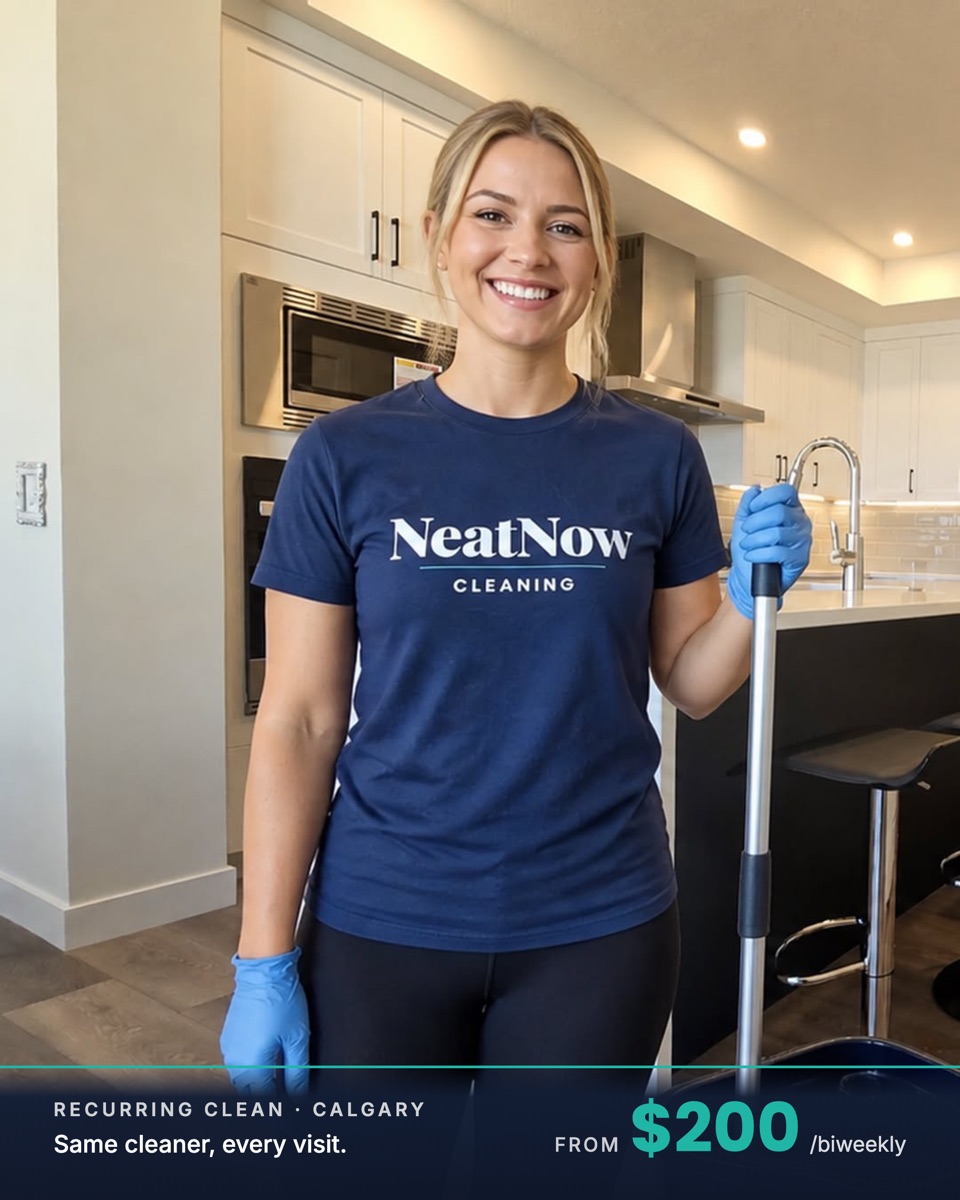
- Creative: cleaner-in-kitchen image + a "From $200/biweekly" price band (NeatNow's is an AI cleaner composited into a real kitchen; see section 6 on keeping AI imagery believable)
- Targeting: affluent neighborhoods via custom-location pins (see section 4)
- Age: minimum 22 (see the age note in section 4, the tool now treats the upper end as a suggestion, not a hard cap)
- Placements: NeatNow ran feed-first. The default is Advantage+ placements (all placements), but you can restrict to feeds by unticking the other placement groups under Placement controls (see section 4).
Ad set B — Move-out (~$10/day)
A one-time, transactional offer. Smaller budget, broader reach.
- Daily budget: ~$10/day
- Optimization: optimize for Leads
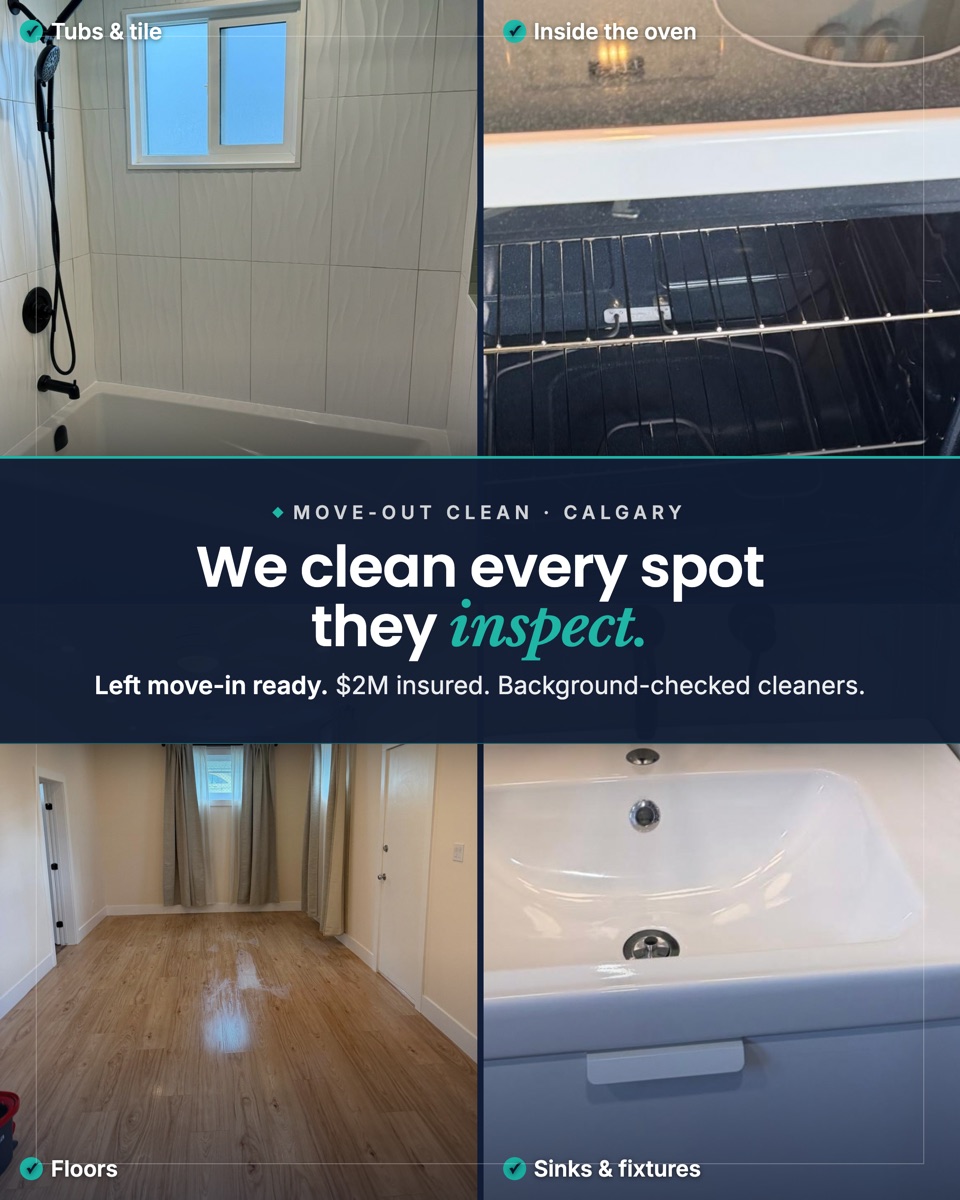
- Creative: inspection-checklist collage with NO price
- Targeting: broad metro, the whole city plus nearby towns (see section 4)
- Age: minimum 22 (see section 4)
- Placements: same as above, Advantage+ placements by default (see section 4)
🔧 Customize: Your offers and budgets. The principle that transfers: put the bigger budget behind your repeat-revenue offer and tightly-targeted audience, a smaller budget behind your one-time/broad offer. Exact dollars are yours to set.
4. Targeting (the ad set's Audience section)
Two offers, two different targeting strategies. What follows is the reasoning NeatNow used and what it actually ran. We are not targeting experts, so read this as one business's approach worth testing, not as a rule.
First, understand how the Audience section now works
Meta split the ad set's Audience into two kinds of setting, and the difference matters:
- "Controls" are hard limits. The tool literally says "We won't reach people beyond these settings, even with Advantage+ on." Your Locations, a Minimum age, Languages, and any Excluded audiences live here. This is where your real targeting happens.
- "Suggest an audience" is a set of soft hints (custom audiences, an age range, gender, and detailed-interest targeting). Meta will "reach people beyond" these when it thinks it will improve results. So anything you put here is a suggestion, not a fence.
The practical upshot: the geographic targeting below is a hard Control and does what you expect. Interest/detailed targeting and the upper age bound are now suggestions Meta can overshoot, so do not lean on them to keep the audience tight.
⚠️ Check Locations first, every time. Under Controls, Locations defaults to your whole country (NeatNow's showed "Canada"). If you skip this step you will pay to show a local cleaning ad nationwide. Setting your city is the single most important targeting move.
Recurring → custom-location pins on affluent neighborhoods
Our thinking: recurring cleaning is a higher-lifetime-value commitment, and we guessed affluent households were the likeliest to buy it. So rather than target the whole city, NeatNow dropped pins directly on the affluent areas.
In the ad set, under Audience → Controls → Locations:
- Remove the default country entry. In the Search locations box, type an area (a city, neighborhood, or postal code) and pick it. A map appears with your area; you can also place a point by hand using the Drop pin control on the map.
- Click the location chip's dropdown to tighten the radius. Choose Current city only, or Cities within radius and drag the slider down (NeatNow used the smallest useful radius so a pin covers the affluent area and not the cheaper postal codes beside it). The default radius is a wide 25 mi / 40 km, so this almost always needs shrinking.
- Repeat for each affluent cluster (Add locations in bulk speeds up a long list). NeatNow
used four pins:
- Elbow River cluster (Mount Royal / Elbow Park / Britannia / Roxboro / Bel-Aire / Elboya)
- Altadore / Marda Loop
- Aspen / Springbank Hill / West Springs
- Bayview / Pump Hill / Palliser
🔧 Customize: Your city's affluent areas. What NeatNow chose to avoid was targeting the whole metro for a recurring offer, on the theory it would pay to reach households unlikely to buy a standing biweekly clean. We found the few neighborhoods where the houses are big and the incomes are high, and pinned those. Whether that holds in your market is worth testing.
Move-out → broad metro
Move-out cleaning is more of a one-time, life-event purchase, so NeatNow treated anyone moving in the metro as a possible prospect regardless of neighborhood, and targeted broadly. In the same Locations control, add the whole city plus nearby commuter towns instead of pins. NeatNow used Calgary + Airdrie + Cochrane + Chestermere as one broad area.
🔧 Customize: Your city plus the towns within your service radius. Broad is what worked for NeatNow on the one-time offer; pin-targeting a one-time mover audience did not make sense to us for this purchase. Test what fits your market.
Age
Set your Minimum age under Controls (NeatNow used 22, and left Languages on All). Note the change from older guides: only the minimum age is a hard control now. A full range like "22-65" lives under Suggest an audience, where the upper bound is just a hint Meta can exceed. So set the floor you actually want and treat the ceiling as advisory. NeatNow used no gender restriction.
Placements
By default, Placements is set to Advantage+ placements, which Meta recommends: your ad runs across all available placements automatically (Facebook, Instagram, Audience Network, Messenger, Threads; the tool counts 21 in total). But you are not locked into all of them. You can restrict delivery to specific placements, for example a feed-only lead test.
To do it, open Placements → Show more settings → Placement controls. Each placement group is a checkbox you can untick: Feeds; Stories, Status, Reels; In-stream ads for reels; Search results; and Apps and sites. Untick everything except Feeds and your ad runs feed-only. (Separately, Placement controls → Account controls lets you exclude individual placements, e.g. drop Audience Network, across the account.)
Whether you should restrict placements is your call: Meta pushes Advantage+ placements as the default and it often finds cheaper results across placements. A reasonable middle path is to start on Advantage+ placements, watch lead quality by placement in reporting, and untick the ones whose leads never book.
Source: Meta Business Help Center, "Choose ad placements in Meta Ads Manager" — "It is recommended that you choose Advantage+ placements… However, you can also manually choose your own ad placements if you want your ads to appear in specific placements only," with a dedicated flow for the
leadsobjective. (Verified live in Ads Manager, July 2026: in the leads flow this lives under Placements → Show more settings → Placement controls. Meta's page shows no publication date.)
5. Two acceptances that can block delivery (keep them straight)
People conflate these. They are different, and only one is specific to lead ads.
Lead Ads Terms (per Page, always required for lead ads)
Before a Page can run lead ads at all, someone has to accept Meta's Lead Ads Terms for that Page. You do this at the Ad level, under Identity (section 8): once accepted, the Page shows "You've accepted Meta's Lead Ads Terms for this Page." This one is genuinely lead-ad specific, and if it is not accepted, the lead ad cannot deliver.
Non-Discrimination certification (periodic, not lead-specific)
Separately, Meta asks advertisers to certify compliance with its Discriminatory Practices (non-discrimination) policy. Per Meta's own help page, this is a periodic ask, not a blanket precondition on every campaign: "we may periodically ask you to review the policy and certify." Meta says it is "especially important for advertisers who run housing, employment or financial products and services ads", which is where it is most likely to fire. Cleaning is not one of those categories, so do not assume every cleaning campaign will trip it.
But if Meta does ask you, it is a hard gate: "you'll have to complete the process before your ads can be approved," and "your ads will be rejected if you don't certify." NeatNow was in fact prompted for this while building a lead campaign, and the ad would not deliver until it was certified. So it can happen to a cleaning advertiser even though the policy is aimed elsewhere; treat it as "handle it if Meta shows the prompt," not "a step everyone must do."
If you are asked, certify here:
- Go directly to
facebook.com/certification/nondiscrimination, or accept the prompt where Meta surfaces it (Ads Manager, Meta Business Suite, or account notifications). - Read the policy, then select I accept.
- Re-check right before you activate. NeatNow saw the requirement lag or re-trigger around ad-set edits, so confirm it is still satisfied at go-live.
⚠️ On the error code: NeatNow saw this surface as a "Certification Required" rejection with error code
2859024. That code is not in Meta's public error reference and is not named on Meta's certification help page, so treat it as one account's observation, not a documented code. (Sources for this section: Meta Business Help Center, "Review and Certify Compliance for Meta's Discriminatory Practices Policy", and the live certification page atfacebook.com/certification/nondiscrimination; neither shows a publication date.)
Detailed step-by-step and what to do if it keeps re-triggering is in Appendix C — Troubleshooting.
6. Creative rules (test these in your own account)
Read this first. The performance notes in this section are from one ad account over a few weeks (NeatNow's), not a controlled test. The sample is tiny. Treat them as things to test in your own account, not laws. Two kinds of guidance follow: principles that hold up on their own because they are about honesty and relevance (not about beating an algorithm), and what happened to work for NeatNow, which is anecdote you should re-test for yourself.
Principles (these stand on their own merits)
Price anchors MUST match what your lead form can actually honor. If your ad promises a price the form cannot deliver, that is bait-and-switch, and it burns trust the moment the auto-quote text lands. NeatNow's form's smallest size bucket is 1700-1999 sqft, so the smallest honest recurring quote the engine can text a form-filler is ~$200/biweekly. So:
- Recurring ad shows "From $200/biweekly", the true floor for what the form actually serves. (The lower numbers NeatNow can do for tiny homes are not on the form, so they do not go on the ad.)
- Move-out ad shows NO price. Move-out demand spans home sizes the current form mis-serves, so any single number would mislead someone. Instead it competes on thoroughness: "inspection-ready", the full landlord checklist, every spot they inspect. The collage of real job photos is the pitch.
🔧 Customize: Find the smallest size your form actually offers, quote that size's price as your "From" anchor, and only on offers where one honest number fits. If an offer's audience spans sizes your form handles badly, show no price and sell on thoroughness instead.
Match the trust line to the offer. A trust line should be true for that specific job, or it reads as recycled.
- Move-out trust line: "$2M insured, background-checked." Concrete and relevant to letting a crew into an empty home you are handing back to a landlord.
- Do not put "same cleaner every visit" on a move-out ad. That is a recurring benefit; it means nothing for a one-time job.
Keep to about 3 or fewer live creatives at once. On a small budget, every extra variant means each one gets less data, so you learn slower. Add a new creative when you retire a weak one.
Use Meta's recommended image spec. As of Meta's current Ads Guide, a Facebook Feed image ad is 4:5 ratio at 1440 × 1800 pixels (JPG or PNG, max 30MB; minimum 600px wide and 750px tall; 3% aspect-ratio tolerance). Note that 1440×1800 is what Meta now lists as the recommended resolution, so export to that; the older 1080×1350 you will see in dated guides is below the current spec. Keep key text and your logo away from the very top and bottom so app UI never covers them. (The "~200px from the top / ~180px from the bottom" figure is a Stories-style rule of thumb, not a documented Meta feed safe-zone; Meta's Feed spec lists no safe zone.) See Meta's ad image specs (verified July 2026; no publication date shown on the page).
What worked for NeatNow (one account, small spend, test your own)
These are NeatNow's own observations from a small budget. They are not guarantees and not industry claims, just what happened in one account. Run your own versions and let the results decide.
Owner / founder photos worked. Ads built around the owner's own photos produced good-quality leads. A real person who runs the business reads as authentic, which is what a stranger deciding whether to let a cleaner into their home is weighing. So do not assume you should keep your face off your ads. What matters is authentic, relevant imagery, and a genuine owner photo is one way to get it.
The recurring creative was an AI cleaner composited into a real kitchen, and it produced good leads. A bright, simple image of a cleaner in a branded shirt in a real kitchen shows the service in one glance. Ours used an AI-generated cleaner over a real kitchen background, with a price band along the bottom. What mattered was believability: a composite that looks like a real photo builds trust, while an obviously-fake or uncanny image does the opposite, so if you use AI imagery the bar is "does this look like a real photo a real business would post." We did not test a photo of an actual cleaner, so treat that as an untested alternative worth trying. When in doubt, shoot the real thing.
Real before/after and on-the-job photos are worth shooting. NeatNow's move-out collage uses real job detail shots (tubs, oven, floors, fixtures). The simplest way to capture usable before/after pairs is to shoot the SAME spot at the SAME angle before and after the clean, so the only thing that changes between the two frames is the result.
🔧 Customize: Do not adopt any of these as a rule. Run your own face, a real staff photo, and a believable real-kitchen shot as separate creatives, then judge them on lead quality, not just cost-per-lead. Cheap leads that never book are worse than fewer leads that close.
7. What NeatNow's two creatives looked like
These are the two creatives NeatNow is currently running, not early drafts. Each is a later version: we went through a couple of rounds on the image, the copy, and the headline before landing on these, and we will keep changing them over time. They are shared as reference, not as a template to copy. You will build your own versions with your own brand and photos.
Recurring — an AI-generated cleaner composited into a real kitchen, branded shirt, with a navy price band reading "From $200/biweekly."
Move-out — a 2x2 grid of real job photos (tub and tile, inside the oven, floors, sinks and fixtures), a center line "We clean every spot they inspect," and a trust line "$2M insured. Background-checked cleaners." No price.
ℹ️ The creative is not an afterthought here, it just isn't what this guide teaches. Most of this playbook is the plumbing: the form, the pricing logic, the worker, the campaign structure. The ad creative, the image, the primary text, the headline, and the offer, is doing just as much of the work of turning a scroll into a lead, and it deserves real attention. What we deliberately leave out is the ongoing craft of optimizing it: testing headlines, rotating images, and chasing down cost-per-lead over time. That is a marketing discipline in its own right, and we are an automation shop, not a marketing agency, so we are not going to pretend to teach it. We show you the creatives we landed on and the reasoning; refining your own is your call, and worth taking seriously.
Treat these as a starting point. Shoot your own brand, your own photos, your own numbers. This is just what worked for one Calgary cleaning business.
8. Building the ad itself (the Ad level)
Sections 1-4 set up the Campaign and Ad set. The last level in the left rail, Ad, is where you attach the lead form and load the creative you just designed. This is the step older guides tend to skip, so here is the full click-path.
Identity, who the ad comes from.
- Facebook Page (Required): select your business Page. The first time you run a lead ad from a Page, Meta makes you accept its Lead Ads Terms for that Page, a one-time click (View Terms → accept). If you do not, the ad cannot deliver.
- Instagram profile: pick your Instagram account, or choose Use Facebook Page to run it under the Page's name if you have no IG.
- Threads profile: optional; Use Instagram account is a fine default.
Ad setup, the format.
- Leave the setup dropdown on Create ad (rather than Use existing post).
- Format: Single image or video for a single creative like NeatNow's, or Carousel for a multi-card ad. NeatNow ran single-image ads.
Destination, this is where the lead form attaches.
- Under Destination, choose Instant form (not Website, a Website destination sends people off Facebook and skips the whole prefilled-form advantage).
- Then attach your form: use Search your forms and pick the one you built in 02 — Lead form from the Active list, or click Create instant form to build it right here (the fields, questions, and privacy link are all covered in 02, the builder is the same one).
- Quality filters (optional): you can Require SMS verification to make leads confirm their phone with a one-time code. It cuts spam but adds friction, NeatNow left it off to keep the form fast, and relied on the auto-quote text to weed out bad numbers.
Ad creative, load your image and copy.
- Media (Required): click Edit (or the add-media control) and upload the creative you designed in section 6. Meta shows previews grouped by where the ad appears (Feeds; Stories, Reels; Right column). One image can serve all of them, or you can tailor a crop per group, for a first test, one clean 4:5 image everywhere is plenty.
- Primary text: your main caption (the block above the image). Meta's Ads Guide recommends 50-150 characters; the feed shows only the first couple of lines before a "See more" link, so lead with the hook.
- Headline: the short bold line under the image. Meta recommends about 27 characters (NeatNow's read like "Get An Honest Home Cleaning").
- Description: optional supporting line; fine to leave blank.
- Call to action: choose Get quote from the dropdown. It matches a quote-by-text funnel
better than Learn more or Sign up. (The API value is
GET_QUOTE.)
Then stop. Do not click Publish yet. Review all three levels once more (the go-live checklist walks the end-to-end test). Your work is safe as an In draft campaign that does not spend. When you are ready, Publish pushes it live; Discard drafts (from the campaigns list) throws the whole draft away if you change your mind.
🔧 Customize: Everything here, your Page, your form, your image, your caption, your headline. The one setting worth not second-guessing is Get quote as the CTA if your engine texts a price back, it sets the right expectation for what happens after the tap.
Next
With the campaign, ad sets, targeting, and creative built (and paused), go to 06 — Go live and monitor to test the whole chain end-to-end, activate, and judge whether it's working.
- Building this via API instead? → Appendix B — Meta API path
- Ad not delivering / "Certification Required"? → Appendix C — Troubleshooting
- Back to the README
06 — Go Live & Monitor
← Back to README · Previous: 05-facebook-ad.md · Related: appendix-C-troubleshooting.md
Everything is built. Before you spend a dollar, you prove the whole chain works with a test lead — no ad, no money, no waiting. Then you go live, and you keep a light hand on the monitoring so a silent failure can never cost you days of leads again.
This file covers four things:
- The smoke test (prove it works before spending)
- The repeatable diagnosis playbook (when leads "stop")
- Judging whether it's working (attribution + counting real bookings)
- The consolidated go-live checklist
1. The smoke test — prove it works before spending
Meta gives you a tool that fakes a real lead submission, end to end, for free. Use it before activating any ad.
Tool: Meta Lead Ads Testing Tool — developers.facebook.com/tools/lead-ads-testing
Steps:
In a terminal, start tailing the worker logs so you can watch the lead flow through in real time:
npx wrangler tail <worker-name> --format prettyNeatNow example (use your own): the worker is named
neatnow-api, so the command isnpx wrangler tail neatnow-api --format pretty.Open the Lead Ads Testing Tool and:
- Select your Page (double-check it is your Page, not another business's).
- Set the product to Lead Retrieval.
- Pick your live Form (the one attached to your ad).
- Click Create Lead.
Watch the log tail. A healthy run logs the lead being received, fetched, priced, and the texts being sent.
Success = all three of these happen:
- (a) The test "lead" receives the auto-quote SMS (it goes to the phone on the test lead — for a test submission this is typically your own profile's number).
- (b) You receive the owner-notification SMS (the "🧹 NEW FB LEAD" alert with
the lead's details and the
Ad:line). - (c) A backup row hits Formspree (you get the backup email), if you wired Formspree.
If all three fire, your engine works. Now — and only now — activate your ad (05-facebook-ad.md).
If something is missing, jump to the diagnosis playbook below.
2. The repeatable diagnosis playbook
The situation this catches: you stop getting leads, but Meta's Ads Manager still shows leads arriving (and still charges you for them). That means leads ARE being created; something between Facebook and your phone is broken. Here is how to find it in minutes.
Step 1 — Tail the worker logs
npx wrangler tail <worker-name> --format pretty
Step 2 — Fire a test lead
Use the Lead Ads Testing Tool exactly as in the smoke test above (Page → Lead Retrieval → your Form → Create Lead). This gives you a controlled event to read in the logs.
Step 3 — Read the log line and match it to the cause
The worker tags its log lines with prefixes like FB webhook:, FB lead …, and
Graph API error …. The fragments in the "What the log shows" column below are the
distinctive part to search for in your wrangler tail output.
| What the log shows | What it means | What to do |
|---|---|---|
failed to fetch lead + code 190 / subcode 460 |
The page token died (almost always a Facebook password change or a Meta security reset) | Regenerate the never-expiring System User token — see appendix-C-troubleshooting.md (the headline incident) |
owner notify failed: OpenPhone … |
SMS provider key / number issue | Check OPENPHONE_API_KEY and OPENPHONE_FROM_NUMBER; see Appendix C |
owner notify sent and the text arrives |
The pipeline is healthy | The problem is elsewhere (e.g. you are looking at the wrong number, or the ad simply is not delivering) |
| Nothing logs at all | The webhook is not reaching the worker — the app's leadgen subscription on the Page lapsed |
Re-subscribe the app to the Page's leadgen field; see Appendix C |
Step 4 — Confirm the token directly (when you suspect the token)
You can test the token without any test lead by asking the Graph API for the form's leads directly:
GET https://graph.facebook.com/<version>/<FORM_ID>/leads?access_token=<TOKEN>
- A list of leads comes back → the token is healthy.
- An auth error (
code 190— for a dead token, subcode 460) comes back → the token is dead or lacks permissions. Regenerate it (Appendix C).
The reason the "I stopped getting leads" failure is so dangerous is that the original design failed silently — a dead token dropped every lead with only a buried log line as evidence. The hardened worker now alerts you loudly the instant a fetch fails, so you find out in minutes, not days. That fail-loud alert is described in appendix-C-troubleshooting.md and the worker code in 04-the-worker.md.
3. Judging whether it's working
Every lead knows which ad produced it
Each lead carries its ad_id, and the owner-notification SMS includes an Ad: line
with that ID. So when a lead comes in, you immediately know which ad earned it. Keep a simple
note of which ad ID maps to which creative/offer and you can see, per ad, what is pulling.
Your booking platform will undercount, so count bookings yourself
Here is the trap that can make the engine look worse than it is:
For NeatNow, most leads that booked did so by replying to the text, not by completing an online form or checkout. So an online booking platform or CRM only records the few who self-serve online and misses anyone who booked over text. Our online count showed only a fraction of the bookings the engine actually produced.
So do not judge it by the online booking count. Count real bookings by scanning each lead's SMS thread for signals that the lead became a paying job:
- "booked you in" / "you're booked for…"
- "charged the card" / payment confirmation
- a reply to your review link (you only send that after a completed job)
What it looked like for NeatNow (our experience, not a promise)
We are deliberately not putting a single ROAS number on this. A one-time return figure undersells what a lead engine actually does, so here is the honest picture instead:
- In about two and a half months, the engine captured around 150 leads.
- They are a mix: some are tire-kickers, some are real buyers. Expect both, that is normal.
- It produced real bookings, including recurring clients from Facebook ads, the repeat-revenue customers that matter most.
Why we will not reduce it to a multiple: a recurring client is not one job, they pay again and again, so any single-period "X times return" understates them. And a lead that goes cold is not dead, you can re-engage it later. Judge the engine over time on bookings and recurring signups, not on a snapshot number.
This guide stops at the automated quote. How you track replies, re-engage cold leads, and close them (your booking/CRM, a spreadsheet, your phone) is your own manual follow-up, out of scope here.
4. The consolidated go-live checklist
Walk this top to bottom before you turn on spend. (This is the new-owner setup distilled — the deeper "why" behind each line is in 04-the-worker.md and appendix-C-troubleshooting.md.)
- System User created in Meta Business Suite → Settings → Users → System users (older accounts: "Business Settings → Users → System Users"; both open the same place).
- Page assigned to the System User with the Ads and Leads tasks (the Ads task alone is NOT enough to read lead data — you must enable Leads too).
- Never-expiring token generated for the lead-webhook app, with all five
permissions:
leads_retrieval,pages_read_engagement,pages_manage_ads,pages_show_list,ads_management. - "Verify account" prompt completed — Meta requires this account-verification step (password / 2FA) before it will show you the token.
- All secrets set on the worker via
wrangler— the FB token, app secret, verify token, SMS API key, SMS "from" number, and your owner-notify phone. - App subscribed to the Page's
leadgenwebhook (the GET handshake echoeshub.challengewhen the verify token matches). - Smoke test passed (Section 1 above) — auto-quote SMS, owner alert, and Formspree backup all fired — before activating any ad.
When every box is checked and the smoke test is green, activate your ad and watch the first real leads come through your log tail.
If leads ever stop — or never start — go straight to the lookup table: appendix-C-troubleshooting.md. For the worker and token internals, see 04-the-worker.md.
Appendix A — Reference Worker (complete, ready to adapt)
← Back to README · ← 04 The worker · 03 Pricing engine · 06 Go live & monitor →
This is the complete, runnable worker that powers the Facebook-lead → auto-quote-SMS engine. It is derived from NeatNow's real production worker, stripped of every secret and trimmed to the Facebook-lead path only so you (or your AI assistant) can adapt it for any cleaning business.
The real NeatNow worker also has a website-form path (a
/leadendpoint that quotes from bedroom counts and classifies neighborhoods into pricing tiers). That path is out of scope for this guide — you have no website — so it is omitted here. Everything below is the Facebook-lead path, intact and faithful.
How to read this appendix
Two kinds of code live here, and the difference is the whole point:
- 🔒 ENGINE — don't touch. The plumbing: routing, signature verification, lead fetching, the fail-loud safety net, the SMS-send helper. It is business-agnostic. If you change it, you risk breaking the safety guarantees.
- 🔧 TENANT CONFIG — edit these. Your prices, your SMS wording, your phone numbers, your
IDs. There are only three files/spots you normally touch:
pricing.ts,fb-sms-template.ts, and the placeholder values inwrangler.toml.
File tree
your-worker/
├── wrangler.toml          🔧 TENANT CONFIG — names, vars, placeholder values
├── package.json            🔒 engine
└── src/
    ├── index.ts            🔒 ENGINE — router, fail-loud handler, SMS helper
    ├── facebook.ts         🔒 ENGINE — signature verify, lead fetch, field parse
    ├── pricing.ts          🔧 TENANT CONFIG — your square-footage prices
    └── fb-sms-template.ts  🔧 TENANT CONFIG — your SMS wording + owner notification
package.json 🔒
{
  "name": "your-worker",
  "version": "1.0.0",
  "private": true,
  "scripts": {
    "dev": "wrangler dev",
    "deploy": "wrangler deploy"
  },
  "devDependencies": {
    "wrangler": "^4.0.0",
    "typescript": "^5.0.0"
  }
}
wrangler.toml 🔧 TENANT CONFIG
Edit name and every value under [vars]. Do not put secrets in this file — they are
set separately with wrangler secret put (see the comment block).
Config format: Cloudflare now recommends
wrangler.jsoncfor new projects (some newer features are JSON-config only); thewrangler.tomlshown below still works. Wrangler v4 also dropped Node 16 support. See the configuration docs.
name = "your-worker"            # 🔧 becomes part of your public URL
main = "src/index.ts"
compatibility_date = "2024-09-23"

[vars]
# 🔧 Your business SMS line (the "from" number), E.164 format. Example only — use your own.
OPENPHONE_FROM_NUMBER = "+15550000000"
# 🔧 Backup endpoint that receives a copy of every lead. Example only — use your own.
FORMSPREE_ENDPOINT = "https://formspree.io/f/XXXXXXXX"
# Websites allowed to call the worker (CORS). Only a website form path uses this; this
# FB-only worker never reads it, so you can leave it or delete it.
ALLOWED_ORIGINS = "https://example.com"
# Graph API version to call. Use a current version (v25.0 was current as of June 2026) and
# check the changelog — versions deprecate on a ~2-year cycle.
# https://developers.facebook.com/docs/graph-api/changelog
FB_GRAPH_API_VERSION = "v25.0"
# 🔧 YOUR mobile number — gets the "new lead" detail SMS + the fail-loud alert. Example only.
FB_OWNER_NOTIFY_PHONE = "+15551112222"

# ──────────────────────────────────────────────────────────────────────────
# SECRETS — never written in this file. Set each with:
#   printf '%s' "<VALUE>" | npx wrangler secret put <NAME>
# (applies immediately — secret put creates and deploys a new Worker version right away;
#  no separate `wrangler deploy` needed)
#
#   OPENPHONE_API_KEY      — your SMS provider API key
#   FB_VERIFY_TOKEN        — a random string YOU invent, used for the webhook handshake
#   FB_APP_SECRET          — your Facebook App Secret, used for HMAC signature verification
#   FB_PAGE_ACCESS_TOKEN   — NEVER-EXPIRING SYSTEM USER token with leads_retrieval,
#                            pages_read_engagement, pages_manage_ads, pages_show_list,
#                            ads_management (and the Page assigned with the LEADS task enabled)
# ──────────────────────────────────────────────────────────────────────────
src/index.ts 🔒 ENGINE
Router + Facebook-lead handler (with the fail-loud safety net) + the SMS-send helper.
Do not edit this file beyond reading it — your changes belong in pricing.ts and
fb-sms-template.ts.
// FB Lead Intake Worker — Facebook Lead Ads → auto-quote SMS.
// ENGINE: do not edit. Tenant config lives in pricing.ts and fb-sms-template.ts.

import { verifyWebhookSignature, fetchLeadData, parseLeadFields, type ParsedFbLead } from './facebook';
import { fbLeadSms, fbLeadOwnerNotification } from './fb-sms-template';

interface Env {
  // Secrets
  OPENPHONE_API_KEY: string;
  FB_VERIFY_TOKEN: string;
  FB_APP_SECRET: string;
  FB_PAGE_ACCESS_TOKEN: string;
  // Vars
  OPENPHONE_FROM_NUMBER: string;
  FORMSPREE_ENDPOINT: string;
  FB_GRAPH_API_VERSION: string;
  FB_OWNER_NOTIFY_PHONE?: string;
}

// Normalize a phone number to E.164 (+1XXXXXXXXXX for North America).
// Returns null if it can't be made valid — caller must handle null.
function normalizePhone(raw: string): string | null {
  if (!raw?.trim()) return null;
  const cleaned = raw.trim();
  const hasPlus = cleaned.startsWith('+');
  const digits = cleaned.replace(/\D/g, '');
  if (digits.length === 10) return `+1${digits}`;
  if (digits.length === 11 && digits.startsWith('1')) return `+${digits}`;
  if (hasPlus && digits.length === 11) return `+${digits}`;
  return null;
}

// ── SMS send helper ─────────────────────────────────────────────────────────
// 🔧 THIS is the one function to swap if you use a different SMS provider.
// Change the URL, auth header, body shape, and success status to match your provider.
// Quo (formerly OpenPhone) specifics: raw key (NO "Bearer" prefix); success = HTTP 202 (not 200).
// Docs: https://www.quo.com/docs/api-reference/messages/send-a-text-message
async function sendOpenPhoneSms(
  env: Env,
  to: string,
  content: string
): Promise<{ success: boolean; error?: string }> {
  try {
    // api.quo.com is canonical; the legacy api.openphone.com host may still resolve.
    const resp = await fetch('https://api.quo.com/v1/messages', {
      method: 'POST',
      headers: {
        'Authorization': env.OPENPHONE_API_KEY, // raw key, no "Bearer"
        'Content-Type': 'application/json',
      },
      body: JSON.stringify({ content, from: env.OPENPHONE_FROM_NUMBER, to: [to] }),
    });
    if (resp.status === 202) return { success: true };
    const body = await resp.text();
    return { success: false, error: `OpenPhone ${resp.status}: ${body.slice(0, 200)}` };
  } catch (err) {
    return { success: false, error: `OpenPhone fetch error: ${(err as Error).message}` };
  }
}

// Backup: post a copy of the lead to a backup endpoint (Formspree by default).
// Fire-and-forget; failure here must never block the main pipeline.
async function forwardFbLeadToFormspree(
  env: Env,
  lead: ParsedFbLead,
  meta: { ad_id?: string; campaign_id?: string; form_id?: string }
): Promise<void> {
  try {
    const resp = await fetch(env.FORMSPREE_ENDPOINT, {
      method: 'POST',
      headers: { 'Content-Type': 'application/json', 'Accept': 'application/json' },
      body: JSON.stringify({
        // Formspree's current special field is `subject` (legacy name was `_subject`).
        subject: `[FB LEAD] ${lead.fullName || lead.firstName || 'New Lead'}`,
        source: 'Facebook Lead Ad',
        name: lead.fullName,
        firstName: lead.firstName,
        lastName: lead.lastName,
        phone: lead.phone,
        email: lead.email,
        streetAddress: lead.streetAddress,
        serviceType: lead.serviceType,
        timing: lead.timing,
        squareFootage: lead.squareFootage,
        bathrooms: lead.bathrooms,
        rawFields: JSON.stringify(lead.rawFields),
        adId: meta.ad_id || '',
        campaignId: meta.campaign_id || '',
        formId: meta.form_id || '',
      }),
    });
    const respBody = await resp.text();
    console.log(`FB Formspree response: ${resp.status} ${respBody.slice(0, 200)}`);
  } catch (err) {
    console.error(`FB Formspree forwarding failed: ${(err as Error).message}`);
  }
}

// GET /facebook/webhook — Meta's verification handshake.
// Meta sends ?hub.mode=subscribe&hub.verify_token=X&hub.challenge=Y
// Echo hub.challenge back ONLY if hub.verify_token matches our secret.
function handleFbVerification(request: Request, env: Env): Response {
  const url = new URL(request.url);
  const mode = url.searchParams.get('hub.mode');
  const token = url.searchParams.get('hub.verify_token');
  const challenge = url.searchParams.get('hub.challenge');

  if (mode === 'subscribe' && token === env.FB_VERIFY_TOKEN && challenge) {
    console.log('FB webhook verification: success');
    return new Response(challenge, { status: 200 });
  }
  console.error(`FB webhook verification failed. mode=${mode} token-match=${token === env.FB_VERIFY_TOKEN}`);
  return new Response('Forbidden', { status: 403 });
}

// POST /facebook/webhook — incoming lead notification.
// Payload: { object:"page", entry:[{ changes:[{ field:"leadgen",
//            value:{ leadgen_id, page_id, form_id, ad_id, created_time } }] }] }
async function handleFbLead(request: Request, env: Env): Promise<Response> {
  // 1) Read raw body and verify the signature (proves it's really Meta).
  const rawBody = await request.text();
  const signature = request.headers.get('x-hub-signature-256');
  if (env.FB_APP_SECRET) {
    const valid = await verifyWebhookSignature(rawBody, signature, env.FB_APP_SECRET);
    if (!valid) {
      console.error('FB webhook: invalid signature');
      return new Response('Invalid signature', { status: 401 });
    }
  }

  let payload: any;
  try {
    payload = JSON.parse(rawBody);
  } catch {
    return new Response('Invalid JSON', { status: 400 });
  }
  if (payload.object !== 'page') {
    console.log(`FB webhook: ignoring object=${payload.object}`);
    return new Response('OK', { status: 200 });
  }

  for (const entry of (payload.entry || [])) {
    for (const change of (entry.changes || [])) {
      if (change.field !== 'leadgen') continue;
      const value = change.value || {};
      const leadgenId = value.leadgen_id;
      if (!leadgenId) {
        console.error('FB webhook: missing leadgen_id', JSON.stringify(value));
        continue;
      }
      console.log(`FB webhook: processing leadgen_id=${leadgenId}`);

      // 2) Fetch the actual lead answers via Graph API (needs FB_PAGE_ACCESS_TOKEN).
      const leadData = await fetchLeadData(
        leadgenId,
        env.FB_PAGE_ACCESS_TOKEN,
        env.FB_GRAPH_API_VERSION || 'v25.0'
      );

      // ── FAIL LOUD ──────────────────────────────────────────────────────────
      // A fetch failure almost always means FB_PAGE_ACCESS_TOKEN is invalid
      // (e.g. owner changed their Facebook password -> OAuth code 190 / subcode 460).
      // NEVER drop the lead silently — that silence cost ~2 days of leads once.
      if (!leadData) {
        console.error(`FB webhook: failed to fetch lead ${leadgenId}`);
        // (a) Alert the owner by SMS so a dead token is caught in minutes, not days.
        const alertPhone = env.FB_OWNER_NOTIFY_PHONE ? normalizePhone(env.FB_OWNER_NOTIFY_PHONE) : null;
        if (alertPhone) {
          const alert = `⚠️ Leads alert: a Facebook lead arrived but could NOT be fetched (leadgen_id ${leadgenId}). The page token is likely invalid (often after a Facebook password change). Regenerate FB_PAGE_ACCESS_TOKEN. The lead is recoverable from Meta Leads Center.`;
          const a = await sendOpenPhoneSms(env, alertPhone, alert);
          if (!a.success) console.error(`FB fetch-failure owner alert failed: ${a.error}`);
        }
        // (b) Leave an out-of-band trace so the lead is never lost even on fetch failure.
        try {
          await fetch(env.FORMSPREE_ENDPOINT, {
            method: 'POST',
            headers: { 'Content-Type': 'application/json', 'Accept': 'application/json' },
            body: JSON.stringify({
              subject: `[FB LEAD - FETCH FAILED] leadgen_id ${leadgenId}`,
              source: 'Facebook Lead Ad (fetch failed)',
              leadgenId,
              adId: value.ad_id || '',
              formId: value.form_id || '',
              note: 'Lead fetch failed — check/regenerate FB_PAGE_ACCESS_TOKEN. Retrievable from Meta Leads Center.',
            }),
          });
        } catch (err) {
          console.error(`FB fetch-failure Formspree trace failed: ${(err as Error).message}`);
        }
        continue;
      }

      // 3) Parse the answers.
      const lead = parseLeadFields(leadData);
      console.log(`FB lead parsed: ${lead.firstName} ${lead.email} ${lead.phone}`);

      // 4) Text the LEAD their quote.
      const normalizedPhone = normalizePhone(lead.phone);
      if (normalizedPhone) {
        const smsResult = await sendOpenPhoneSms(env, normalizedPhone, fbLeadSms(lead));
        if (!smsResult.success) console.error(`FB lead SMS failed: ${smsResult.error}`);
      } else {
        console.error(`FB lead: invalid phone "${lead.phone}"`);
      }

      // 5) Text YOU (the owner) the full details.
      const ownerPhone = env.FB_OWNER_NOTIFY_PHONE ? normalizePhone(env.FB_OWNER_NOTIFY_PHONE) : null;
      if (ownerPhone) {
        const notify = fbLeadOwnerNotification(lead, { ad_id: value.ad_id, form_id: value.form_id });
        const r = await sendOpenPhoneSms(env, ownerPhone, notify);
        if (!r.success) console.error(`FB lead owner notify failed: ${r.error}`);
        else console.log(`FB lead owner notify sent to ${ownerPhone}`);
      }

      // 6) Backup copy.
      await forwardFbLeadToFormspree(env, lead, {
        ad_id: value.ad_id, campaign_id: value.campaign_id, form_id: value.form_id,
      });
    }
  }

  // Always 200 so Meta doesn't retry.
  return new Response('OK', { status: 200 });
}

export default {
  async fetch(request: Request, env: Env): Promise<Response> {
    const url = new URL(request.url);

    // Facebook Lead Ads webhook
    if (url.pathname === '/facebook/webhook' || url.pathname === '/facebook/webhook/') {
      if (request.method === 'GET') return handleFbVerification(request, env);
      if (request.method === 'POST') return handleFbLead(request, env);
    }

    // Health check
    if (request.method === 'GET' && (url.pathname === '/' || url.pathname === '/health')) {
      return new Response(JSON.stringify({ status: 'ok', service: 'fb-lead-worker' }), {
        status: 200, headers: { 'Content-Type': 'application/json' },
      });
    }

    return new Response('Not Found', { status: 404 });
  },
};
NOTE: the real NeatNow worker also routes a
POST /leadwebsite-form endpoint here. It is omitted on purpose (out of scope). Everything you need for the Facebook path is above.
src/facebook.ts 🔒 ENGINE
Signature verification, Graph API lead fetch, and field parsing. Business-agnostic — leave
it alone. Worth understanding parseLeadFields, though: it matches your lead-form questions
by keyword, so it survives small wording changes in your form.
// Facebook Lead Ads webhook helpers — ENGINE, do not edit.
// HMAC signature verification, Graph API lead fetching, field parsing.

export interface FbLeadField { name: string; values: string[]; }

export interface FbLeadData {
  id: string;
  created_time: string;
  field_data: FbLeadField[];
  ad_id?: string;
  adset_id?: string;
  campaign_id?: string;
  form_id?: string;
}

export interface ParsedFbLead {
  firstName: string;
  lastName: string;
  fullName: string;
  email: string;
  phone: string;
  streetAddress: string;
  serviceType: string;
  timing: string;
  squareFootage: string;
  bathrooms: string;
  rawFields: Record<string, string>; // catchall for any custom answers
}

// Verify the X-Hub-Signature-256 header. Meta signs the raw body with HMAC-SHA256
// using your App Secret. Constant-time comparison to avoid timing attacks.
export async function verifyWebhookSignature(
  rawBody: string,
  signatureHeader: string | null,
  appSecret: string
): Promise<boolean> {
  if (!signatureHeader || !signatureHeader.startsWith('sha256=')) return false;
  const expectedHex = signatureHeader.slice('sha256='.length);

  const encoder = new TextEncoder();
  const key = await crypto.subtle.importKey(
    'raw', encoder.encode(appSecret),
    { name: 'HMAC', hash: 'SHA-256' }, false, ['sign']
  );
  const sigBuffer = await crypto.subtle.sign('HMAC', key, encoder.encode(rawBody));
  const computedHex = Array.from(new Uint8Array(sigBuffer))
    .map(b => b.toString(16).padStart(2, '0')).join('');

  if (computedHex.length !== expectedHex.length) return false;
  let diff = 0;
  for (let i = 0; i < computedHex.length; i++) {
    diff |= computedHex.charCodeAt(i) ^ expectedHex.charCodeAt(i);
  }
  return diff === 0;
}

// Fetch lead data from the Graph API using the leadgen_id.
// Requires a token (use a System User token) with leads_retrieval permission.
// Returns null on ANY failure — the caller's fail-loud path handles null.
export async function fetchLeadData(
  leadgenId: string,
  accessToken: string,
  apiVersion: string
): Promise<FbLeadData | null> {
  const url = `https://graph.facebook.com/${apiVersion}/${leadgenId}?access_token=${encodeURIComponent(accessToken)}`;
  try {
    const resp = await fetch(url, { method: 'GET' });
    if (!resp.ok) {
      const body = await resp.text();
      console.error(`Graph API error ${resp.status}: ${body.slice(0, 300)}`);
      return null;
    }
    return await resp.json() as FbLeadData;
  } catch (err) {
    console.error(`Graph API fetch error: ${(err as Error).message}`);
    return null;
  }
}

// Match a field by fuzzy keyword (lowercased, alphanumerics only). Lets the parser
// tolerate different question wording across forms.
function getField(fields: FbLeadField[], ...candidates: string[]): string {
  const normalized = (s: string) => s.toLowerCase().replace(/[^a-z0-9]/g, '');
  for (const candidate of candidates) {
    const target = normalized(candidate);
    const match = fields.find(f => normalized(f.name).includes(target));
    if (match && match.values?.length) return match.values[0];
  }
  return '';
}

export function parseLeadFields(lead: FbLeadData): ParsedFbLead {
  const fields = lead.field_data || [];

  const firstName = getField(fields, 'first_name', 'firstname');
  const lastName = getField(fields, 'last_name', 'lastname');
  const fullName = [firstName, lastName].filter(Boolean).join(' ').trim()
    || getField(fields, 'full_name', 'name');
  const email = getField(fields, 'email');
  const phone = getField(fields, 'phone_number', 'phone');
  const streetAddress = getField(fields, 'street_address', 'address');

  // Custom questions — matched by keywords in the question label.
  // 🔧 If you name your form questions very differently, add keywords here.
  const serviceType = getField(fields, 'service', 'type_of_service', 'what_type_of_service');
  const timing = getField(fields, 'how_soon', 'timing', 'when');
  const squareFootage = getField(fields, 'square_footage', 'sqft', 'size', 'approximate_square');
  const bathrooms = getField(fields, 'bathroom', 'how_many_bathrooms');

  const rawFields: Record<string, string> = {};
  for (const f of fields) rawFields[f.name] = (f.values || []).join(', ');

  return {
    firstName: firstName || fullName.split(' ')[0] || '',
    lastName, fullName, email, phone, streetAddress,
    serviceType, timing, squareFootage, bathrooms, rawFields,
  };
}
src/pricing.ts 🔧 TENANT CONFIG — edit your prices here
This is the heart of your business logic. The example prices the quote from a square-footage bracket + bathroom count + service type. Replace every number in the three square-footage tables below with your own (these are derived from NeatNow's pricing playbook — see 03 for how the brackets were chosen).
Note on First-Time Clean:
fbServiceTypeFromLabelroutes an answer containingfirstordeep→first-timeout of the box, so the template works if you sell one. NeatNow's live form simply does not offer a first-time option (its choices are one-time, bi-weekly, and move-in/out), so in practice the branch never fires and the live form quotes Standard and Move In/Out only — that is the behavior described in 02 and 03. To quote First-Time from a Facebook lead, add a form option whose label contains "first" or "deep"; no code change needed. If you do not sell a first-time/deep clean, just leave the FTC table at zeros (or delete it and thefirst-timebranch) and the path is inert.
// Square-footage pricing for Facebook leads. 🔧 TENANT CONFIG — edit the tables.

export type ServiceType = 'standard' | 'first-time' | 'move-in-out';
export type Frequency = 'weekly' | 'biweekly' | 'monthly' | 'one-time';

const BATHROOM_ADDON = 25; // 🔧 per extra bathroom beyond the first
const GST_RATE = 0.05;     // 🔧 your tax rate. NOTE: not used on the FB path (FB quotes are shown pre-tax with a "(+ GST)" note, see formatFbPriceForSms); kept only if you add a tax-inclusive path.

// 🔧 Recurring discounts on the STANDARD service only.
const FREQUENCY_DISCOUNT: Record<Frequency, number> = {
  'weekly': 0.20, 'biweekly': 0.15, 'monthly': 0.10, 'one-time': 0,
};

export type SqftBracket =
  | '1700-1999' | '2000-2249' | '2250-2499'
  | '2500-2749' | '2750-2999' | 'custom';

// 🔧 Standard Clean base price per bracket (1 bathroom included).
const SQFT_STANDARD_BASE: Record<SqftBracket, number> = {
  '1700-1999': 225, '2000-2249': 235, '2250-2499': 252,
  '2500-2749': 270, '2750-2999': 294, 'custom': 0,
};
// 🔧 First-Time / deep clean EXTRA, added on top of Standard base.
const SQFT_FTC_EXTRA: Record<SqftBracket, number> = {
  '1700-1999': 175, '2000-2249': 175, '2250-2499': 175,
  '2500-2749': 225, '2750-2999': 225, 'custom': 0,
};
// 🔧 Move In/Out EXTRA, added on top of Standard base.
const SQFT_MIO_EXTRA: Record<SqftBracket, number> = {
  '1700-1999': 275, '2000-2249': 300, '2250-2499': 300,
  '2500-2749': 325, '2750-2999': 325, 'custom': 0,
};

// Map a sqft string from the FB form to a bracket. 3000+ → custom quote.
export function sqftToBracket(sqftLabel: string): SqftBracket {
  if (!sqftLabel) return 'custom';
  const lower = sqftLabel.toLowerCase().replace(/\s+/g, '').replace(/,/g, '');
  if (lower.includes('3000+') || lower.startsWith('3')) return 'custom';
  const match = lower.match(/(\d{3,5})/);
  if (!match) return 'custom';
  const num = parseInt(match[1], 10);
  if (num >= 3000) return 'custom';
  if (num >= 2750) return '2750-2999';
  if (num >= 2500) return '2500-2749';
  if (num >= 2250) return '2250-2499';
  if (num >= 2000) return '2000-2249';
  if (num >= 1700) return '1700-1999';
  return '1700-1999'; // below 1700 falls back to the smallest bracket
}

export function parseBathrooms(bathLabel: string): number {
  if (!bathLabel) return 1;
  const match = bathLabel.match(/(\d+)/);
  if (!match) return 1;
  return Math.max(1, parseInt(match[1], 10));
}

// 🔧 Map your form's service answer to a ServiceType.
export function fbServiceTypeFromLabel(label: string): ServiceType {
  if (!label) return 'standard';
  const lower = label.toLowerCase();
  if (lower.includes('move')) return 'move-in-out';
  if (lower.includes('first') || lower.includes('deep')) return 'first-time';
  return 'standard';
}

// 🔧 Map your form's frequency answer to a Frequency.
export function fbFrequencyFromLabel(label: string): Frequency {
  if (!label) return 'one-time';
  const lower = label.toLowerCase();
  if (lower.includes('week') && !lower.includes('bi') && !lower.includes('every other')) return 'weekly';
  if (lower.includes('bi-week') || lower.includes('biweek') || lower.includes('every other')) return 'biweekly';
  if (lower.includes('month')) return 'monthly';
  return 'one-time';
}

export interface FbPriceResult {
  bracket: SqftBracket;
  basePrice: number;
  bathroomAddon: number;
  subtotal: number;
  discount: number;
  discountedSubtotal: number;
  isCustomQuote: boolean;
  serviceLabel: string; // for SMS display
}

export function calculateFbPrice(
  sqftLabel: string,
  bathroomLabel: string,
  serviceLabel: string,
  frequencyLabel: string = ''
): FbPriceResult {
  const bracket = sqftToBracket(sqftLabel);
  const bathrooms = parseBathrooms(bathroomLabel);
  const serviceType = fbServiceTypeFromLabel(serviceLabel);
  const frequency = fbFrequencyFromLabel(frequencyLabel);

  if (bracket === 'custom') {
    return {
      bracket, basePrice: 0, bathroomAddon: 0, subtotal: 0,
      discount: 0, discountedSubtotal: 0, isCustomQuote: true,
      serviceLabel: serviceLabel || 'Standard Clean',
    };
  }

  const standardBase = SQFT_STANDARD_BASE[bracket];
  let basePrice: number;
  let displayLabel: string;
  if (serviceType === 'first-time') {
    basePrice = standardBase + SQFT_FTC_EXTRA[bracket];
    displayLabel = 'First Time Clean';
  } else if (serviceType === 'move-in-out') {
    basePrice = standardBase + SQFT_MIO_EXTRA[bracket];
    displayLabel = 'Move In/Out Clean';
  } else {
    basePrice = standardBase;
    displayLabel = 'Standard Clean';
  }

  const bathroomAddon = Math.max(0, bathrooms - 1) * BATHROOM_ADDON;
  const subtotal = basePrice + bathroomAddon;

  const discountRate = serviceType === 'standard' ? (FREQUENCY_DISCOUNT[frequency] ?? 0) : 0;
  const discount = Math.round(subtotal * discountRate);
  const discountedSubtotal = subtotal - discount;

  return {
    bracket, basePrice, bathroomAddon, subtotal,
    discount, discountedSubtotal, isCustomQuote: false, serviceLabel: displayLabel,
  };
}

export function formatFbPriceForSms(result: FbPriceResult): string {
  if (result.isCustomQuote) return 'a custom quote. I\'ll follow up shortly with details';
  return `$${result.discountedSubtotal} (+ GST)`; // 🔧 drop "+ GST" if you don't charge tax
}
src/fb-sms-template.ts 🔧 TENANT CONFIG — edit your wording here
Two messages: the one the lead gets (their quote) and the one you get (full details). Rewrite the copy, the sender name, and the booking link for your business.
// SMS templates for Facebook leads. 🔧 TENANT CONFIG — edit copy, name, link.

import type { ParsedFbLead } from './facebook';
import { calculateFbPrice, formatFbPriceForSms } from './pricing';

// Owner-facing notification — full snapshot so you never dig through email.
export function fbLeadOwnerNotification(
  lead: ParsedFbLead,
  meta: { ad_id?: string; form_id?: string }
): string {
  const priceResult = calculateFbPrice(
    lead.squareFootage, lead.bathrooms, lead.serviceType, lead.serviceType
  );
  const priceStr = priceResult.isCustomQuote
    ? 'CUSTOM (3000+ sqft)'
    : `$${priceResult.discountedSubtotal} + GST`;

  const lines = [
    `🧹 NEW FB LEAD`,
    ``,
    `${lead.fullName || 'Unknown'}`,
    `${lead.phone || 'no phone'}`,
    `${lead.email || 'no email'}`,
    ``,
    `Service: ${lead.serviceType || '?'}`,
    `Timing: ${lead.timing || '?'}`,
    `Size: ${lead.squareFootage || '?'} sqft`,
    `Baths: ${lead.bathrooms || '?'}`,
    ``,
    `Quoted: ${priceStr}`,
  ];
  if (meta.ad_id) lines.push(`Ad: ${meta.ad_id}`); // ad attribution — keep this
  return lines.join('\n');
}

// Lead-facing SMS — the auto-quote. 🔧 Change "Adura", "NeatNow Cleaning",
// and the booking link to your own.
export function fbLeadSms(lead: ParsedFbLead): string {
  const name = lead.firstName || 'there';
  const priceResult = calculateFbPrice(
    lead.squareFootage, lead.bathrooms, lead.serviceType, lead.serviceType
  );
  const priceStr = formatFbPriceForSms(priceResult);
  const sqftLine = lead.squareFootage ? `~${lead.squareFootage} sqft` : '';
  const bathLine = lead.bathrooms ? `${lead.bathrooms} bath` : '';
  const detailsLine = [sqftLine, bathLine].filter(Boolean).join(', ');

  if (priceResult.isCustomQuote) {
    return [
      `Hi ${name}, this is Adura from NeatNow Cleaning.`,
      '',
      `Thanks for requesting a quote on Facebook!`,
      '',
      `For a home your size (${detailsLine}), I'll send you a custom quote within a few hours.`,
      '',
      `Questions? Just reply, I respond personally.`,
    ].join('\n');
  }

  return [
    `Hi ${name}, this is Adura from NeatNow Cleaning.`,
    '',
    `Thanks for requesting a quote on Facebook!`,
    '',
    `Based on what you shared (${detailsLine}, ${priceResult.serviceLabel}), your estimated price is ${priceStr}.`,
    '',
    `You can book your preferred date online, no walkthrough needed: https://example.com/book/`,
    '',
    `Questions? Just reply, I respond personally.`,
  ].join('\n');
}
What to edit for your business — checklist
Everything else is engine. These are the only spots you touch:
-
wrangler.toml→name(your worker name), and every[vars]value:OPENPHONE_FROM_NUMBER,FORMSPREE_ENDPOINT,ALLOWED_ORIGINS,FB_GRAPH_API_VERSION,FB_OWNER_NOTIFY_PHONE. -
src/pricing.ts→ the three price tables (SQFT_STANDARD_BASE,SQFT_FTC_EXTRA,SQFT_MIO_EXTRA),BATHROOM_ADDON,GST_RATE,FREQUENCY_DISCOUNT, and the bracket boundaries insqftToBracketif your form uses different size bands. -
src/fb-sms-template.ts→ the sender name, business name, booking link, and any copy wording in both messages. -
src/index.ts → sendOpenPhoneSms→ only if you use a non-OpenPhone SMS provider (swap URL, auth header, body shape, success status). -
src/facebook.ts → parseLeadFields→ only if your form question labels are so different that the keyword matcher misses them; add your keywords. - Set the four secrets with
wrangler secret put(never in a file):OPENPHONE_API_KEY,FB_VERIFY_TOKEN,FB_APP_SECRET,FB_PAGE_ACCESS_TOKEN(the never-expiring System User token — see the warning box in 04).
Do not edit: the routing, signature verification, lead fetch, or the fail-loud block. Those are the safety guarantees.
← 04 The worker · 03 Pricing engine · 05 The Facebook ad → · 06 Go live & monitor →
Appendix B — Building the ad via the Meta Marketing API
← Back to README · UI version: 05-facebook-ad.md
This is the alternative to the Ads Manager UI path in 05. It is the path to take when an AI assistant is doing the setup: it is fully scriptable, every object is created with explicit parameters, and you can build everything paused for review.
Read 05 first. The business decisions (one offer per ad set, the affluent-pin vs broad-metro targeting, the creative rules, price-must-match-the-form) are identical and are explained there. This appendix only covers the mechanics of creating the same objects through the Graph API instead of clicking.
All IDs below are NeatNow's, shown as shape examples only. Use your own. No tokens or secret values appear in this guide, and you should never commit one.
1. The two-token gotcha (this is the one that wastes an afternoon)
There are two kinds of token, and they are not interchangeable for this task:
| Token | Can it create a lead-ad ad set? |
|---|---|
| System User token (long-lived, the kind you bake into a server) | No. It can read insights and even create the campaign, but creating a lead-gen ad set fails. |
User token with ads_management + ads_read |
Yes. This is the only one that works for lead ads. |
Why: Meta binds lead-generation to a human identity that has accepted the Lead-Gen
Terms of Service. A System User is not a human, so the lead-ad ad set create call fails with a
"Terms of Service Not Accepted" error (NeatNow observed error_subcode 1815089):
error_subcode 1815089 "Terms of Service Not Accepted" (observed in practice)
...even when the Page itself has accepted the ToS. (This subcode could not be confirmed on Meta's official error reference, which doesn't render fully via automated tools — it is reported here as observed, not doc-cited.) Do not chase the Page's ToS, it is not the problem. You need a human user's token.
Getting the User token
- Go to the Graph API Explorer (
developers.facebook.com/tools/explorer). - Select your app, add the permissions
ads_managementandads_read. - Generate Access Token and approve the dialog.
- Use it. This token is short-lived (~1-2 hours).
🔒 Discipline: use this token in memory only for the duration of the build. Never write it to a file, never commit it, never paste it into a doc. When it expires, generate a fresh one. (The long-lived System User token is the right tool for the running worker that fetches leads, that is a different job, covered in 04.)
2. The create calls (every field shown is required)
Create the objects in order: campaign → ad set → image upload → creative → ad. If you omit
any of the fields below, the call errors. Create everything status=PAUSED.
Provenance: these create-call field names and values are from NeatNow's actual working API calls (June 2026). Meta's API reference pages don't render fully via automated tools, so treat the field names as verified-by-use and cross-check against the live Graph API reference before relying on them; Meta occasionally renames fields. Several values are additionally confirmed by docs: the
OUTCOME_LEADSobjective,destination_type=ON_AD(valid forOUTCOME_LEADS), theGET_QUOTECTA, theMOBILE_FEED_STANDARDpreview format,custom_locationswithdistance_unit: kilometer, and thecities+ numeric-keymechanism paired with theadgeolocationsearch endpoint. Use a current Graph API version in your request paths (v25.0 was current as of June 2026).
🔧 Customize: every ID, budget, and targeting value. NeatNow's are placeholders. Example IDs (use your own):
- Ad account:
act_1901764640543722(example, use your own)- Page:
976943655503330(example, use your own)- Lead form:
1251163070175753(example, use your own)
2.1 Campaign
POST act_<ACCT>/campaigns
| Field | Value | Why |
|---|---|---|
objective |
OUTCOME_LEADS |
The lead objective. |
special_ad_categories |
[] |
Cleaning is not special. Required field, send empty array. |
is_adset_budget_sharing_enabled |
false |
Required when you are not using campaign budget optimization (you want per-ad-set budgets, per 05 §2). |
status |
PAUSED |
2.2 Ad set (one per offer)
POST act_<ACCT>/adsets
| Field | Value | Why |
|---|---|---|
optimization_goal |
LEAD_GENERATION |
Optimize for form fills. |
billing_event |
IMPRESSIONS |
|
bid_strategy |
LOWEST_COST_WITHOUT_CAP |
Omit this and the call fails with "Bid amount required." |
destination_type |
ON_AD |
The lead form opens on the ad (the instant form). |
promoted_object |
{ "page_id": "<PAGE>" } |
Binds the ad set to your Page. |
daily_budget |
integer in CENTS | e.g. 2000 = $20.00/day (recurring), 1000 = $10.00/day (move-out). |
targeting |
see §3 | Pins vs broad metro. |
status |
PAUSED |
Create two ad sets for NeatNow's example, one recurring ($20/day) and one move-out
($10/day), so neither offer starves the other (05 §2).
2.3 Upload the creative image
POST act_<ACCT>/adimages as multipart form-data with the field source set to the
image file. This costs nothing (no spend). The response returns a hash you use in the
next step.
2.4 Ad creative (lead ad)
POST act_<ACCT>/adcreatives with an object_story_spec:
{
  "object_story_spec": {
    "page_id": "<PAGE>",
    "link_data": {
      "link": "http://fb.me/",
      "image_hash": "<HASH from 2.3>",
      "message": "<your primary text / caption>",
      "call_to_action": {
        "type": "GET_QUOTE",
        "value": { "lead_gen_form_id": "<FORM>" }
      }
    }
  }
}
linkis the literal placeholder"http://fb.me/"for an on-ad lead form, the form opens in-app, so there is no real destination URL. Meta requires the field anyway.call_to_action.typeisGET_QUOTE, matching the form's CTA, with thelead_gen_form_idpointing at the form you built in 02.
2.5 The ad
POST act_<ACCT>/ads referencing the ad set ID and the creative ID, status=PAUSED.
2.6 Preview before you spend a cent
GET <AD_ID>/previews?ad_format=MOBILE_FEED_STANDARD
This returns an iframe URL rendering exactly what the ad will look like in a mobile feed. Open it, confirm the image, copy, price band, and CTA are right, then hand it to the owner to activate.
3. Targeting payloads
Affluent custom-location pins (recurring)
Each pin is a custom_location with a lat/long and a small radius. In the ad set's
targeting.geo_locations.custom_locations:
"custom_locations": [
  { "latitude": 51.02, "longitude": -114.10, "radius": 2, "distance_unit": "kilometer" }
]
Add one entry per affluent neighborhood (NeatNow used four). Keep the radius small so you
do not bleed into cheaper areas. Set age_min: 22, age_max: 65.
Broad metro (move-out)
Use city keys instead of pins. In targeting.geo_locations.cities:
"cities": [
  { "key": "292501" }, { "key": "291869" },
  { "key": "292813" }, { "key": "2675068" }
]
Calgary geo city keys, as an example:
| City | Key |
|---|---|
| Calgary | 292501 |
| Airdrie | 291869 |
| Cochrane | 292813 |
| Chestermere | 2675068 |
🔧 Customize: look up your own city keys. Query
GET search?type=adgeolocation&location_types=["city"]&q=<your city>with your token, the response gives thekeyfor each match. Never reuse Calgary's keys for another metro.
For both ad sets, set feed placements and age_min: 22 / age_max: 65 to match
05 §3-4.
4. Activation discipline
Create all objects PAUSED. The AI builds and previews; the owner reviews the
preview and activates manually. This mirrors the spend-gate principle used everywhere in
this system: nothing that can spend money turns itself on. Activate by flipping the ad and
the ad set to ACTIVE once the preview checks out, recurring ad set first if you want to
control which offer starts spending.
Next
- The UI version of all of this → 05 — The Facebook ad
- The running worker's token (different job, System User token there) → 04 — The worker
- The lead form referenced by
lead_gen_form_id→ 02 — The lead form - "Certification Required" / ad won't deliver → Appendix C — Troubleshooting
- Back to the README
Appendix C — Troubleshooting (when leads stop arriving)
← Back to README · Related: 04-the-worker.md · 06-go-live-and-monitor.md
This is the lookup table you reach for when something breaks. Each failure mode is laid out as symptom → likely cause → fix. For the live diagnosis procedure (tail logs, fire a test lead, read the line), use the playbook in 06-go-live-and-monitor.md. For the worker and token internals, see 04-the-worker.md.
C-1 — Leads silently stopped (Meta still shows leads coming in) — THE headline incident
Symptom
Meta's Ads Manager still shows leads arriving (and is still charging you), but you get
no auto-quote texts, no owner alerts, not even a Formspree backup. It can go unnoticed
for days because nothing visibly errors. The log line, if you tail it, is
failed to fetch lead with OAuthException code 190, subcode 460.
Likely cause
The page token died. The worker fetches each lead from Facebook using
FB_PAGE_ACCESS_TOKEN. If that token is a user token or a user-derived page token, it is
invalidated the moment you change your Facebook password (or Meta forces a security
reset, or it hits its ~60-day expiry). The webhook still arrives, but the fetch step fails,
and the lead is dropped. This is what cost NeatNow ~2 days of leads in June 2026.
Fix — regenerate a never-expiring System User token
In Meta Business Suite → Settings → Users → System users (older accounts may still see this as "Business Settings → Users → System Users"; both open the same place), select (or create) your System User.
Assign the Page with the Leads task. Click the Manage button → in the Manage assignments dialog, toggle Leads on (in addition to Ads) → Save. The Ads task alone cannot read lead data; it should then read "Ads and Leads."
Generate a token under your lead-webhook app. Click Generate token and walk the wizard: Select app → Set expiration (choose Never; the choices are "60 days (Recommended)" and "Never") → Assign permissions (select all five) → Done:
leads_retrievalpages_read_engagementpages_manage_adspages_show_listads_management
Complete the "Verify account" prompt — Meta requires this account-verification step (password / 2FA) before it reveals the token.
Set the secret on the worker (applies immediately —
wrangler secret putcreates and deploys a new version of the Worker right away, no separatewrangler deployneeded):npx wrangler secret put FB_PAGE_ACCESS_TOKENPaste the new token when prompted.
Verify it worked — ask the Graph API for the form's leads directly:
GET https://graph.facebook.com/<version>/<FORM_ID>/leads?access_token=<TOKEN>A list of leads back = fixed. An auth error (
code 190) = the token still is not right (re-check permissions and the Leads task).
Why this no longer goes unnoticed (the fail-loud alert) The original design failed silently — the only trace was a buried Cloudflare log line. The hardened worker now sends you an owner-alert SMS the instant a lead fetch fails (something like "⚠️ FB lead received but could not be fetched — the page token may be invalid. Check/regenerate FB_PAGE_ACCESS_TOKEN.") and forwards the raw lead ID to your backup even on failure. So instead of losing days of leads, you get paged within minutes and run the fix above. This alerting is part of the reference worker in 04-the-worker.md — make sure your build includes it.
Prevention: Always use a System User token, never a user/page token. System User tokens survive password changes and can be set to never expire.
C-2 — Auto-quote SMS never arrives, but the owner notification does (or vice-versa)
Symptom
Part of the texting works and part does not. Either the lead never gets their quote but
you get the owner alert, or you get nothing while the lead does. The log shows
something like owner notify failed: OpenPhone ….
Likely cause An SMS provider key or from-number issue — a wrong/expired API key, or a "from" number that is not provisioned/verified to send.
Fix
Check the
OPENPHONE_API_KEYsecret is current and valid (Quo, formerly OpenPhone: workspace Settings → API tab; requires an Owner/Admin role to mint). (Quo API auth docs) TheOPENPHONE_*secret name is historical — keep it as-is.Check
OPENPHONE_FROM_NUMBERis a real, send-enabled number on your account, in E.164 format (e.g.+15551234567).Re-set whichever is wrong:
npx wrangler secret put OPENPHONE_API_KEYSuccess looks like HTTP 202 from the provider's send endpoint in the logs. Anything else (401/403 = bad key, 4xx on the number = bad from-number) tells you which half to fix.
🔧 Customize: If you use a different SMS provider, the secret names and the success status come from that provider's send API — check their docs for the expected response code and auth header.
C-3 — Nothing logs at all on a test lead
Symptom You fire a test lead from the Lead Ads Testing Tool, you are tailing the worker, and absolutely nothing appears in the log. The worker is not even being reached.
Likely cause
The webhook subscription lapsed. The Meta app is no longer subscribed to the Page's
leadgen field, so Facebook has nowhere to send the "new lead" ping.
Fix
- Re-subscribe the Page to the app for
leadgen. The reliable way is one Graph API call with a Page access token that haspages_manage_metadata:POST https://graph.facebook.com/v25.0/<PAGE_ID>/subscribed_appswithsubscribed_fields=leadgen(the Graph API Explorer is the easy way to run it). Meta sometimes also surfaces a per-Page subscribe toggle in the dashboard, but that screen keeps moving, so the API call is the dependable path. This is a separate subscription from the app-to-leadgen-field subscription in the Webhooks product (04, step 5 of "Subscribing the webhook"). - Verify the handshake. When you (re)subscribe, Facebook sends a GET verification
request to your worker; the worker must echo back
hub.challengewhen the incominghub.verify_tokenmatches yourFB_VERIFY_TOKENsecret. A successful subscription means the handshake passed. If it fails, confirmFB_VERIFY_TOKENon the worker matches the verify token you entered in the app's webhook config, and that the worker's webhook URL is correct.
See 04-the-worker.md for where the verify-token handshake lives in the worker code.
C-4 — Ad won't deliver: "Certification Required" (code 2859024)
Symptom
Your ad or ad set refuses to deliver and Meta returns an error referencing certification.
It surfaces as a "Certification Required" error (NeatNow observed error code 2859024;
this code could not be confirmed on Meta's
error reference, so it
is reported here as observed in practice).
Likely cause The Non-Discrimination Policy has not been accepted for the account (or you accepted it recently and it is still propagating after an edit). Meta requires this acceptance before certain ad types will run.
Fix
- An account admin accepts the Non-Discrimination Policy in Meta Business Suite → Settings (older accounts: "Business Settings"; both open the same place — Meta surfaces the prompt where the policy acceptance lives for the account).
- Wait — it can take a few hours to clear after acceptance (or after an edit that re-triggers it).
- Re-check, then re-activate the ad.
C-5 — Ad performance tanked right after an edit
Symptom The ad was performing fine, you made a change, and cost-per-lead jumped / delivery dropped right afterward.
Likely cause You reset the learning phase. Meta re-enters the "learning" phase after meaningful edits, during which delivery is unstable and CPL is often worse.
Fix / avoid
Significant edits (budget, targeting, creative) restart Meta's learning phase, during which delivery is unstable. Change things sparingly and in batches, and let an ad set accumulate conversions before judging it. (Meta doesn't publish an exact public threshold in machine-readable docs; treat specific figures you see quoted online — like "50 conversions per week" or "a 20% budget change resets learning" — as rules of thumb, not hard facts.)
Quick reference
| Symptom | Likely cause | Section |
|---|---|---|
| Leads silently stopped, Meta still shows leads | Page token died (OAuth 190 / subcode 460) | C-1 |
| One side of the texting fails (quote or owner alert) | SMS key / from-number issue | C-2 |
| Nothing logs on a test lead | Webhook subscription lapsed | C-3 |
| Ad won't deliver: "Certification Required" (2859024) | Non-Discrimination Policy not accepted | C-4 |
| Performance tanked after an edit | Learning phase reset | C-5 |
For the worker, secrets, and token setup, see 04-the-worker.md. For the live go-live and monitoring procedure, see 06-go-live-and-monitor.md.
Appendix D — Visual Walkthrough (Meta setup screens)
← Back to README · 01 Foundations · 04 The worker
📸 Captured 2026-06-30 on the live Meta UI. Meta redesigns these screens often, so treat every screenshot here as point-in-time and verify against the current UI and the official docs linked in 01/04. The written steps in 01 and 04 are the source of truth; these images are a visual aid.
What's here
Steps D1–D5 below are real screenshots captured live on 2026-06-30, redacted: the business name, profile photo, and all numeric IDs are blacked out or blurred. The brand Page name (NeatNow Cleaning) is left visible as the worked example. Step D6 (the Ads Manager objective picker) is a placeholder for you to add, it sits behind a separate Ads Manager login that wasn't captured in this pass.
To refresh or add a screenshot: capture the screen in your own Meta account, black out your business name / profile photo / numeric IDs, and save it to assets/screenshots/<name>.png (the exact filenames are listed in that folder's README.md).
Part 1 — The System User token
Meta Business Suite → Settings → Users → System users (older accounts: "Business Settings").
Step D1 — System user detail
What you're looking at: the detail panel for your system user, where you generate the token and see which assets it can reach.
Exact labels confirmed live: the user has Generate token and Revoke tokens buttons; under Assigned assets, the Facebook Page shows "Partial access (Ads and Leads)" with a Manage button.
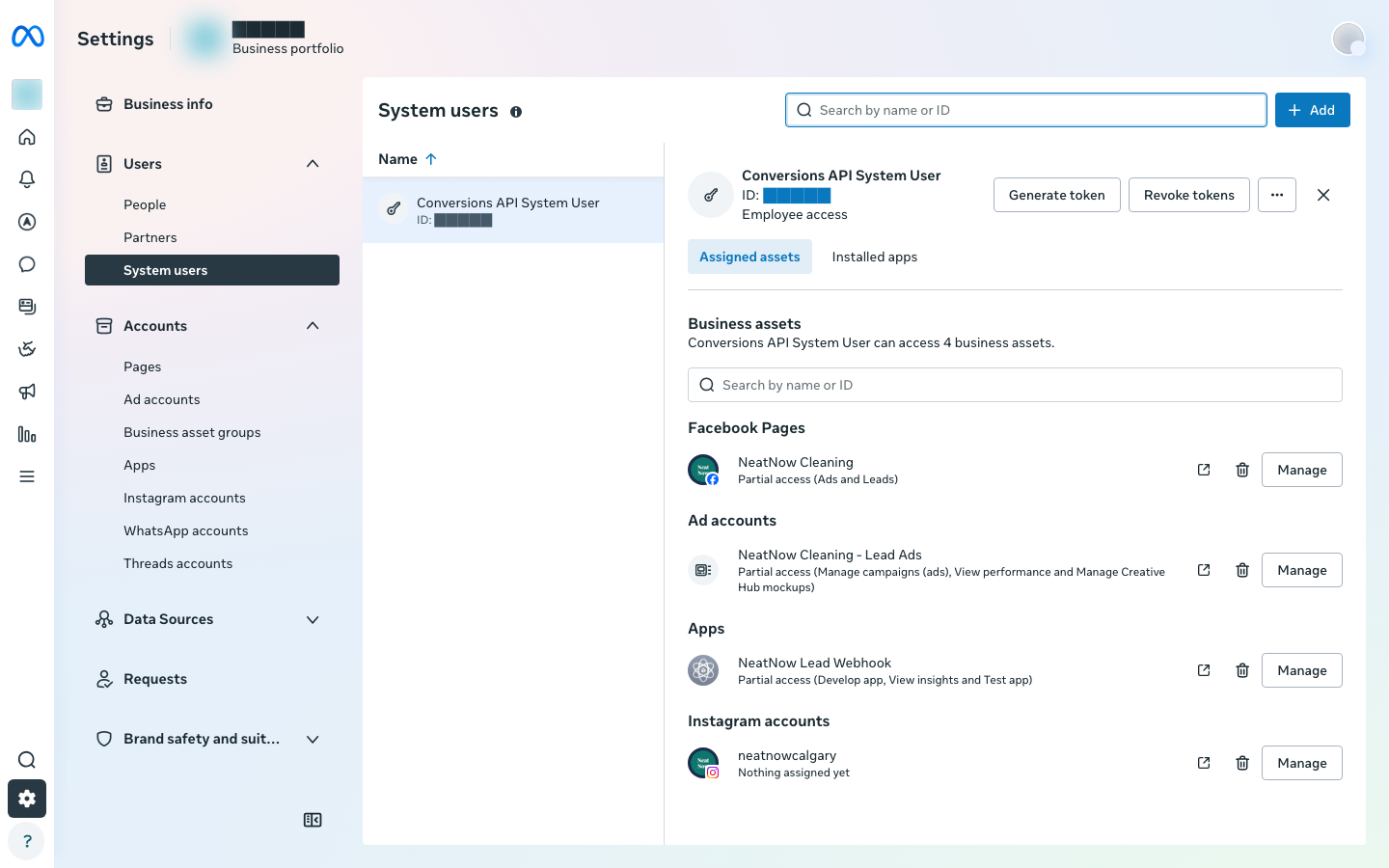 Caption: System user detail — Generate token, and the assigned Page reading "Partial access (Ads and Leads)".
Step D2 — Manage assignments (the load-bearing screen)
What you're looking at: the per-asset task dialog that decides whether the token can actually read leads. Get this wrong and lead retrieval silently fails.
Exact labels confirmed live: the Manage assignments dialog lists task toggles — Content, Community activity, Messages and calls, Ads (ON), Insights, Leads (ON) — where Leads reads "Access and manage leads, including downloading leads, creating lead ads and more." Both Ads and Leads must be ON.
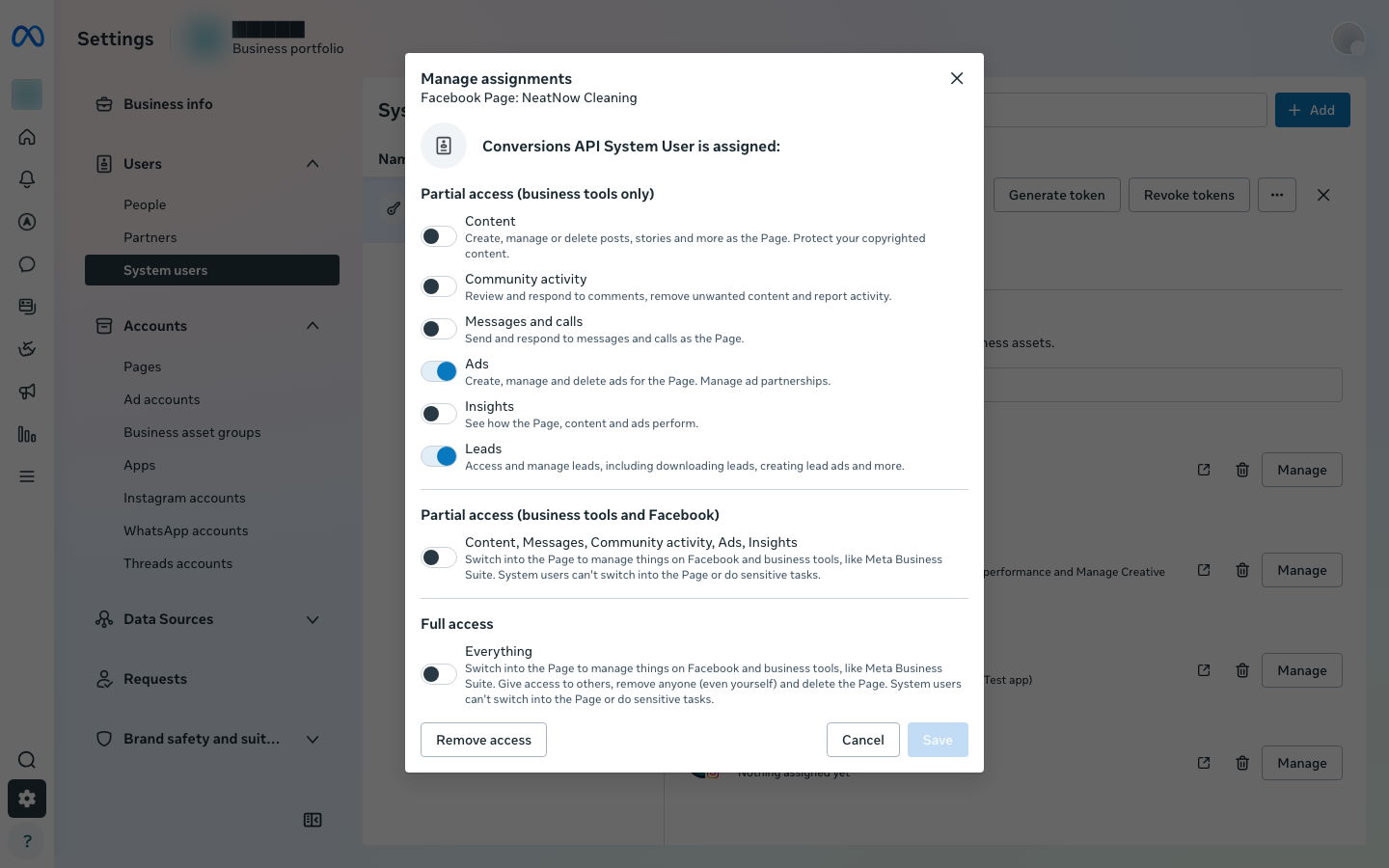 Caption: Manage assignments — both Ads and Leads toggled ON for the Page.
Step D3 — Generate token wizard
What you're looking at: the multi-step wizard that issues the access token.
Exact labels confirmed live: four steps in the rail — Select app → Set expiration → Assign permissions → Done.
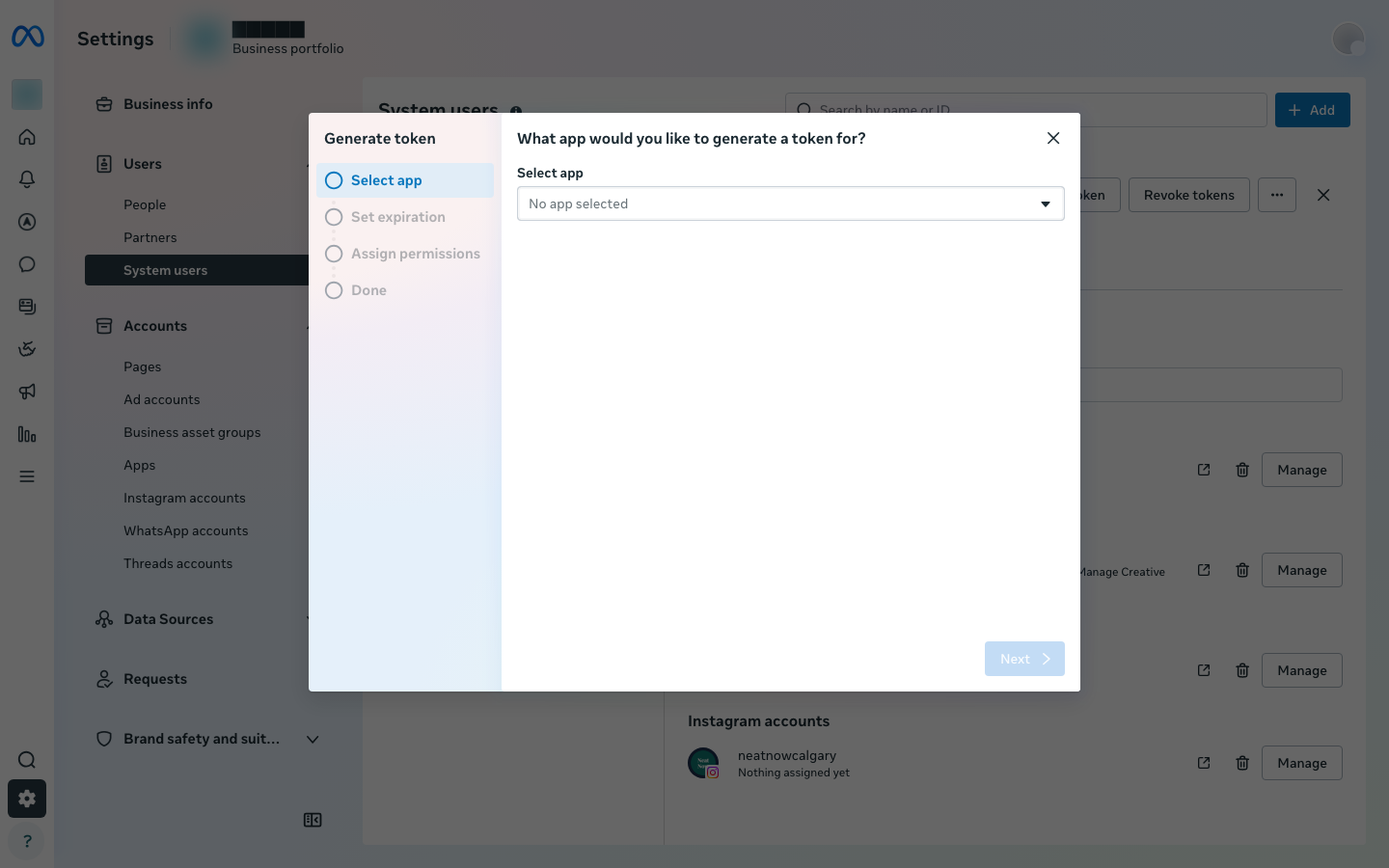 Caption: Generate token wizard — the four-step rail.
Step D4 — Set expiration
What you're looking at: the expiration choice that determines whether your worker's token quietly dies in 60 days.
Exact labels confirmed live: two choices, "60 days (Recommended)" and "Never". Meta pre-selects "60 days," so you have to actively change it. Choose "Never." If you leave the 60-day default, the worker's token expires in 60 days and lead retrieval silently stops, the exact failure this guide warns about.
⚠️ The screenshot below shows the screen as Meta presents it, with "60 days (Recommended)" still selected. That is the default, not the choice to keep. Click "Never" before you continue.
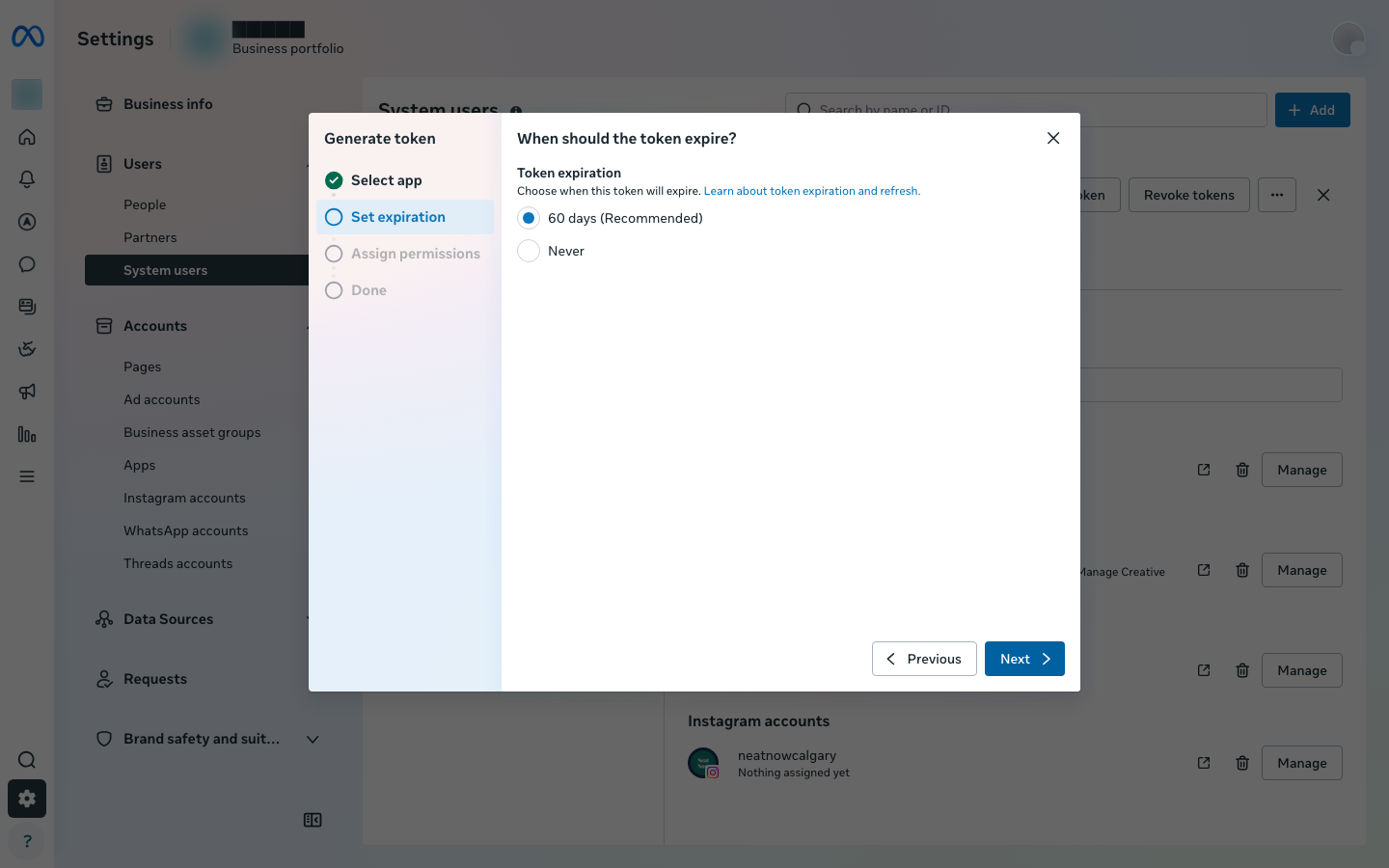 Caption: Meta defaults to "60 days (Recommended)" (shown selected here). Change it to "Never" for a durable worker token.
Step D5 — Assign permissions
What you're looking at: the permission picker for the token's scopes. Type "leads" into the picker's search to confirm leads_retrieval is available, then tick the five scopes.
Exact labels confirmed live: a searchable Select permissions picker; tick leads_retrieval, pages_read_engagement, pages_manage_ads, pages_show_list, ads_management (NeatNow's token also carries ads_read and attribution_read, shown here as "7 options selected"). leads_retrieval is the single load-bearing permission for reading lead data.
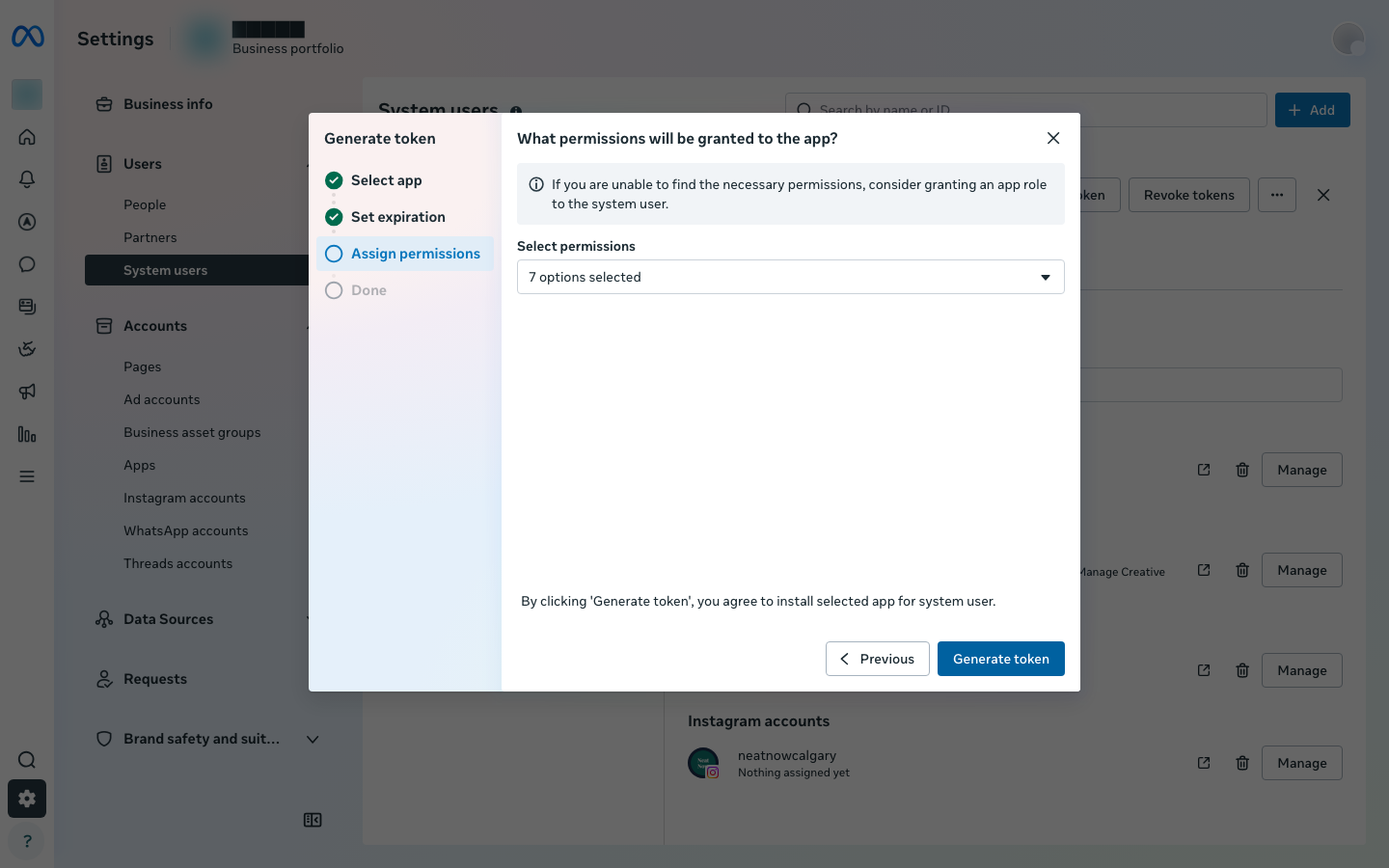 Caption: Assign permissions — the Select permissions picker; tick the five core scopes including leads_retrieval.
Part 2 — The campaign objective
Ads Manager → Create.
Step D6 — Choose a campaign objective (placeholder — add your own capture)
What you're looking at: the objective picker shown right after you click Create. The objective you choose here decides whether you can attach a lead form, so it has to be Leads.
Exact labels confirmed live (from the build session): buying type Auction; objective tiles Awareness / Traffic / Engagement / Leads / App promotion / Sales — choose Leads.
This screen sits behind a separate Ads Manager login and wasn't captured in the 2026-06-30 pass. To add it: in Ads Manager click Create, screenshot the objective picker, redact, and save to
assets/screenshots/meta-06-leads-objective.png. The objective list is also documented in text in 05-facebook-ad.md.
[ screenshot not captured yet — see the note above for how to add it ]
Caption: Choose a campaign objective — select Leads (Auction buying type).Other setup screens (the webhook leadgen subscription, the Lead Ads Testing Tool, the Quo Settings→API page) are documented in text in 04/06; capture them the same way if you want them here.